Monday, January 24, 2022

How to setup rtsp-simple-server service for publishing from gstreamer using the vaapi encoder

The rtsp-simple-server README instructions on https://github.com/aler9/rtsp-simple-server is a little sparse on publishing as a systemd service using Gstreamer and the vaapi plugin. I spent some time trying to get the service to run properly. This post documents the steps I used on an Intel system board running Ubuntu 20.


Install GStreamer

  1. Optional. If Gstreamer has not been installed, then follow the instructions on https://gstreamer.freedesktop.org/documentation/installing/on-linux.html?gi-language=c.

  2. If the GStreamer VAAPI plugin has not been installed, run the following command in a Terminal:

    $ sudo apt install gstreamer1.0-vaapi

 Download and install rtsp-simple-server

  1. Using a browser, download and extract the rtsp-simple-server binary from the github repo https://github.com/aler9/rtsp-simple-server into a folder, e.g. /path/to/rtsp/

    The files rtsp-simple-server and the rtsp-simple-server.yml are extracted out into the directory /path/to/rtsp/.


  2. Open up a Terminal. At the prompt, change directory to the extracted location.

    $ cd /path/to/rtsp/

  3. Move the binary to the folder /usr/local/bin/

    $ sudo mv rtsp-simple-server /usr/local/bin/

  4. Move the configuration file to the folder /usr/local/etc/

    $ sudo mv rtsp-simple-server.yml /usr/local/etc/

Configure rtsp-simple-server to publish from gstreamer

  1. Open up a Terminal. At the prompt, change directory to the directory /usr/local/etc/.

    $ cd /usr/local/etc/

  2. Using a text editor, edit the configuration file rtsp-simple-server.yml. Create a new path name e.g. mystream under the paths key.

    paths:
        mystream:
            runOnDemand: gst-launch-1.0 v4l2src device=/dev/video0 ! 'video/x-raw,framerate=30/1,width=320,height=240' ! videoconvert ! vaapih264enc ! h264parse ! rtspclientsink location=rtsp://localhost:$RTSP_PORT/$RTSP_PATH
            runOnDemandRestart: yes
    

  3. In the runOnDemand key, type in the Gstreamer pipeline to read from a video source, perform encoding and finally to publish to the rtsp server.

    gst-launch-1.0 v4l2src device=/dev/video0 ! 'video/x-raw,framerate=30/1,width=320,height=240' ! videoconvert ! vaapih264enc bitrate=200000 ! h264parse ! rtspclientsink location=rtsp://localhost:$RTSP_PORT/$RTSP_PATH
    
    Note 1: device points to the video source.
    Note 2: video/x-raw line specifies the video format, frame rate, and resolutions to use
    Note 3: videoconvert converts the color space
    Note 4: vaapih264 performs the video encoding using the Intel GPU
    Note 5: rtspclientsink publishes the video to the rtsp server


  4. Save and close the configuration file.

Create and start the rtsp-simple-server service

  1.  Open up a Terminal. Type in the following to create the systemd service.

    sudo tee /etc/systemd/system/rtsp-simple-server.service >/dev/null << EOF
    [Unit]
    After=network.target
    [Service]
    ExecStart=/usr/local/bin/rtsp-simple-server /usr/local/etc/rtsp-simple-server.yml
    [Install]
    WantedBy=multi-user.target
    EOF


  2. To enable and start the service, run the following:

    $ sudo systemctl enable rtsp-simple-server
    $ sudo systemctl start rtsp-simple-server

Optional. Define LIBVA environment variables

On some boards, when using the vaapi encoding plugin, gstreamer may not run with the error message:

WARNING: erroneous pipeline: no element "vaapih264enc"

In this case, setting the environment variables LIBVA_DRIVERS_PATH and LIBVA_DRIVER_NAME for the service may solve the problem. An example of the command to create the rtsp-simple-server service with the environment variables is shown below:

sudo tee /etc/systemd/system/rtsp-simple-server.service >/dev/null << EOF
[Unit]
After=network.target
[Service]
EnvironmentName="LIBVA_DRIVERS_PATH=/usr/lib/x86_64-linux-gnu/dri/"
EnvironmentName="LIBVA_DRIVER_NAME=i965"
ExecStart=/usr/local/bin/rtsp-simple-server /usr/local/etc/rtsp-simple-server.yml
[Install]
WantedBy=multi-user.target
EOF

Monday, January 17, 2022

gstreamer command to encode videos using an Intel GPU on Ubuntu

An alternative to ffmpeg is the gstreamer library, which comes with optional plug-ins to perform video encoding using Intel GPUs. 

Gstreamer can be installed on Ubuntu by following instructions on  https://gstreamer.freedesktop.org/documentation/installing/on-linux.html?gi-language=c

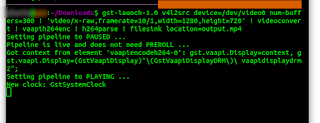
Assuming gstreamer has been installed on Ubuntu, you can run the following command to save the video into an output.mp4 video file.

$ gst-launch-1.0 \
v4l2src device=/dev/video0 num-buffers=300 ! \
'video/x-raw,framerate=10/1,width=1280,height=720' ! \
videoconvert ! \
vaapih264enc ! \
h264parse ! \
filesink location=output.mp4

Note 1: device specifies the video source /dev/video0 and num-buffers specifies the number of frames to read.

Note 2: The line video/x-raw specifies the format, frame rate and resolution to read from the video source.

Note 3: vaapih264enc specifies the Intel Video Accelerated encoder to use.

Note 4: filesink location specifies the output video file.

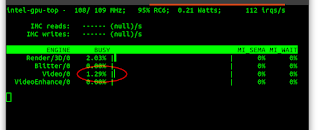
While the gstreamer command is processing the video, in another terminal, run the command to monitor the Intel GPU.

$ sudo intel_gpu_top

As shown above, the printout in red indicates the GPU is being used.

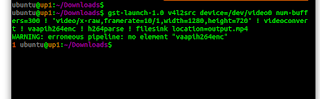
Caution: On some Intel boards I have tested, sometimes running the gstreamer vaapih264enc plugin resulted in the following error message even though the plugin has been installed:

WARNING: erroneous pipeline: no element "vaapih264enc"

In my case, I managed to resolve that error by setting the following environment variables before running the encoding command:

$ export LIBVA_DRIVERS_PATH=/usr/lib/x86_64-linux-gnu/dri/

$ export LIBVA_DRIVER_NAME=i965


Monday, December 27, 2021

ffmpeg command to encode videos using Intel GPU on Ubuntu

Using ffmpeg to encode a video stream, I found the encoding process to use my CPU excessively. I wanted to reduce the CPU usage by transferring the encoding to my built-in Intel GPU. To determine details about the on board Intel GPU driver, you can use the following command on Ubuntu:

$ vainfo


In the example screenshots below, I used the libx264 software encoding option in the ffmpeg command to encode a video stream coming from the device /dev/video0 into an output mpeg file output.mp4:

$ sudo ffmpeg -hide_banner -i /dev/video0 -c:v libx264 output.mp4

While this command is running, the top command shows a high CPU usage.

$ top

After reading through the ffmpeg manual pages and a lot of trials, I found the options to use to enable Intel GPU encoding with the ffmpeg command:

$ sudo ffmpeg -hide_banner -vaapi_device /dev/dri/renderD128 -i /dev/video0 -vf 'format=nv12,hwupload' -c:v h264_vaapi output.mp4


Running the top command shows reduce CPU usage during the encoding process:


Another example with more options is illustrated below: 

$ ffmpeg \
        -vaapi_device /dev/dri/renderD128 \
        -s 1280x720 \
        -i /dev/video0 \
        -vf 'scale=320x240,fps=fps=25,format=nv12,hwupload' \
        -c:v h264_vaapi \
        -b:v 600k \
        output.mp4

ffmpeg will request a video stream of resolution 1280x720 from the source, then scale the frames to 320x240 resolution with a fps of 25. Then it uploads the video data to the Intel GPU for encoding before writing it out with a video bitrate of 600k to the output.mp4 file.


Monday, November 15, 2021

Android Studio: Fixing the warning "flatDir should be avoided"

After upgrading my gradle plugin to version 7, I encountered this warning message "Using flatDir should be avoided because it doesn't support any meta-data format".

As shown in the screenshot below, I have the word flatDir under the repositories keyword inside my Android app's build.gradle file.


This flatDir is used to point to the location of my local Android library file(s), named inside the build.gradle's dependencies section - shown below.

To fix the warning, all I needed to do was to do the following:

  1. Remove the flatDir part from the build.gradle file's repositories section. 
  2. Inside the build.gradle's dependencies section, replace the local Android library name implementation with the following relative path to the local library file name with extension :

    implementation files ( 'libs/my-local-library.aar')

    An example is shown below.


Monday, October 18, 2021

Use Virtual Machine Manager to create a Raspberry Pi virtual machine on Ubuntu

I tried to use the Virtual Machine Manager (virt-manager)'s graphical user interface on Ubuntu to create a Raspberry Pi virtual machine. I found it to be a little tricky having to know the right parameters and configuration. This post describes the steps I went through to successfully create and run the Raspberry Pi virtual machine.

Install software prerequisites

If virt-manager and/or QEMU are not installed on the Ubuntu host, then run the following commands to install them.

$ sudo apt-get install qemu-kvm libvirt-clients libvirt-daemon-system bridge-utils virtinst libvirt-daemon virt-manager

Download a Raspberry Pi OS image

  1. Open up a browser to https://www.raspberrypi.com/software/operating-systems/.

  2. Click on a Raspberry Pi OS image of your choice to download. For example, Raspberry Pi OS Lite.

  3. Unzip the download file and place the extracted image file e.g. 2021-05-raspios-buster-armhf-lite.img to a folder, e.g. /path/to/folder/.

Download a QEMU kernel and the device tree blob (.dtb) for Raspberry Pi

  1. Open up a browser and browse to the repository https://github.com/dhruvvyas90/qemu-rpi-kernel.

  2. Click on kernel-qemu-4.19.50-buster and download the kernel to a folder, e.g. /path/to/folder/.


  3. Next, click on versatile-pb-buster.dtb and download the file to a folder, e.g. /path/to/folder/.

Create a new VM

  1. On the Ubuntu host, run virt-manager.

    The Virtual Machine Manager graphical application appears.
     
  2. Click the Create a new virtual machine button.

    The New VM dialog box wizard appears.


  3. In the Architecture options drop down, choose armv6l in the Architecture combo box. Then select versatilepb in the Machine Type combo box. Press Forward.

    Step 2 page appears.
     
  4. In the Provide the existing storage path field, click Browse.

    The Choose Storage Volume dialog appears.


  5. Click Browse Local and choose to open the previously downloaded Raspberry Pi OS image, e.g. /path/to/folder/2021-05-raspios-buster-armhf-lite.img.


  6. In the Kernel path field, click the Browse button.

    The Choose Storage Volume appears again.


  7. Click Browse Local and choose to open the previously downloaded kernel file, e.g. /path/to/folder/kernel-qemu-4.19.50-buster.

  8. In the DTB path field, click the Browse button.

    The Choose Storage Volume appears.

  9. Click Browse Local and choose to open the previously downloaded dtb file, e.g. /path/to/folder/versatile-pb-buster.dtb.

  10. In the Kernel args field, type in the following:

    root=/dev/vda2 panic=1

  11. Finally, in the Choose the operating system you are installing field, type and choose the following:

    Generic default (generic)

    The Step 2 of the New VM dialog should look like the screen below.


  12. Click Forward.

    Page Step 3 appears.

  13. In the Memory field, change the value to 256.


  14. Click Forward.

    Page 4 appears.


  15. Optional. Change the Name from vm-armv6l if necessary.

     
  16. Toggle on Customize configuration before install. In the Network selection drop down, select Specify shared device name. Then type in virbr0 in the Bridge name.

  17. Click Finish.

    The vm-armv6l on QEMU/KVM dialog box appears.


Customize configuration

  1. Click CPUs. Then in the Model combo box, choose arm1176. Then click Apply to save the change.


  2. Click Boot Options. Toggle on Enable boot menu. Then Toggle on IDE Disk 1. Click Apply.


  3. Click on IDE Disk 1. Then click the Advanced options drop down. In the Disk bus field, change from IDE to VirtIO. Click Apply.


  4. Click the NIC icon. Then change the Device model to virtio. Click Apply.


  5. Optional. Click Add Hardware to add additional peripherals such as Serial mouse, Video card etc. if necessary.

  6. Click Begin Installation.

    The processing messages appear and the Raspberry Pi VM is created.


Monday, October 11, 2021

Using rostopic to simulate publishing odometry topic messages

While developing (Robotic OS) ROS1 node callbacks, and you don't have any inertial motion devices on hand, you can use the rostopic utility command with pub option to simulate the publishing of odometry messages. Basically, before being able to use the command, you have to find out how the odometry message is structured. Once you have the fields - names and format, simply create a shell script and type in the rostopic command with the correct argument structure. More information about the rostopic command is available on http://wiki.ros.org/rostopic.

Identify the Odometry message fields

This can be done using the rosmsg command. In a Terminal, type in the following command:

$ rosmsg info nav_msgs/Odometry

The odometry fields are displayed.

Create a shell script

Using your favorite text editor, create a shell script e.g. test_rostopic.sh to publish odom topic messages of type nav_msgs/Odometry. Type in the following with the fields and corresponding values in yaml format. Make sure no tabs are used and be careful of the spaces.

rostopic pub /odom nav_msgs/Odometry '
{
header: {seq: 1, stamp: now},
pose: 
  { 
  pose: { 
    position: { x: 10, y: 20, z: 30}, 
    orientation: { x: 0.2, y: 0.1, z: 0}
  }, 
  covariance: [0,0,0,0,0,0,0,0,0,0,0,0,0,0,0,0,0,0,0,0,0,0,0,0,0,0,0,0,0,0,0,0,0,0,0,0]},
}'
-r 0.1

Note: the last line "-r 0.1" simply says to repeat the rostopic pub command at 0.1 hz.

Run the shell script

 In a Terminal, type in the following to run the rostopic pub command.

$ bash /path/to/test_rostopic.sh

Optional. To see whether the odometry messages published by the script, open up another Terminal and run the following command:

$ rostopic echo odom

The odom topic is displayed.

Monday, September 6, 2021

How to quickly publish an RTSP stream from a webcam on Ubuntu

I wanted to quickly publish an RTSP video stream from a webcam on Linux without having to work with the complexity of sources and layers in OBS Studio. I found this neat software RtspSimpleServer downloadable from https://github.com/aler9/rtsp-simple-server. 

 For my testing purposes using just the default parameters, I did the following:

Install and run RtspSimpleServer

  1. Using a browser, download and extract the RtspSimpleServer binary from the github repo https://github.com/aler9/rtsp-simple-server into a folder, e.g. /path/to/rtsp/

    The files rtsp-simple-server and the rtsp-simple-server.yml are extracted out into a directory /path/to/rtsp/.

  2. Open up a Terminal. At the prompt, type in the cd command to change to the directory of the rtsp-simple-server.

    $ cd /path/to/rtsp/

  3. At the prompt, run the rtsp-simple-server server:

    $ ./rtsp-simple-server

    Process messages appear to show the server is running.


Publish a video stream

  1. Optional. If the video for linux utils are not installed, then run the apt command to install it.

    $ sudo apt install v4l-utils

  2. Open up a new Terminal. Type in the ffmpeg command to publish the stream from the webcam device (assuming /dev/video0).

    $ ffmpeg \
    -f v4l2 \
    -framerate 90 \
    -re -stream_loop -1 \
    -video_size 640x320 \
    -input_format mjpeg \
    -i /dev/video0 \
    -c copy \
    -f rtsp \
    rtsp://localhost:8554/mystream


    Processing messages appear.


Open the stream with a VLC client

  1. Open up a new Terminal.

     
  2. Run the vlc command to open the published stream.

    $ vlc rtsp://localhost:8554/mystream


    The VLC client pops up to show the RTSP stream from the webcam.