Showing posts with label liblas. Show all posts

Monday, July 25, 2016

Assign a coordinate reference system to a LiDAR las file using PDAL

Some of the LiDAR las files I receive do not contain embedded coordinate reference system (CRS) tags. It would be nice to be able to set a CRS tag to the las file so that I don't have to choose a coordinate reference system everytime I load the file; and I found the Point Data Abstraction Library (PDAL) to have the tools to do exactly that.

To use PDAL to assign a CRS to a las file, do the following:

  1. Open up a Command prompt. Type in the pdal command:

    C:\> pdal translate -i input.las -o output.las --writers.las.a_srs="EPSG:32750"

    Note: where a_srs is the option to assign a CRS e.g. EPSG:32750

  2. To double check whether the CRS tag has been assigned to the las file, you can use the lasinfo tool from liblas, as shown below.


Monday, December 28, 2015

How to fix a Lidar LAS file with a "version minor out of range" error

Recently I encountered some difficulties in working with LiDAR las files using open source software that make use of the liblas library. When attempting to open up the las file, the software would error out with a message complaining about "version minor out of range", as shown in the screenshot below.

After some investigation, it turned out that the file format version (at 1.4)  of the las file is higher than was supported by the software. In order to solve the issue, the las file can be downgraded to a lower file format version e.g. 1.2.

To convert the las file to version 1.2, you can use the pdal utility from the open source software Point Data Abstraction Library (PDAL). After downloading and installing, you can type in the following at the Command Prompt.

C:\> pdal translate --writers.las.minor_version=2 input.las output.las


The resultant file can now be opened, e.g. using the lasinfo utility as shown below.

Monday, July 1, 2013

C# QuadTreeLib example for indexing and querying point items

In GIS, quad trees are usually used for spatial indexing of geographical features. I found this great C# QuadTree Implementation (QuadTreeLib) library project at http://blog.bluetoque.ca/products/quadtree/. The library project comes with an example of indexing rectangles but not for points. So I thought of posting a simple example for points. In this example, the points in a LiDAR LAS file is read and spatially indexed using this library.

//include these name spaces
using System.Drawing;
using QuadTreeLib;
 
//Implement the QuadTreeLib's IHasPoint interface as my own class e.g. PointItem.
class PointItem : QuadTreeLib.IHasPoint
{
private PointF _point;
private uint _seq;
public PointF Point
{
get { return _point; }
}
public uint Seq
{
get { return _seq; }
}
public PointItem(double x, double y,uint seq)
{
PointF p = new PointF((float)x, (float)y);
_point = p;
_seq = seq;
}
}
 
//...etc...

//Declare and initialize the PointQuadTree for storing PointItem classes
private PointQuadTree<PointItem> quadTree = null;
 
static void Main(string[] args)
{    

//...etc...

LASReader reader = new LASReader(@"C:\Temp\myfile.las");
LASHeader header = reader.GetHeader().Copy();

//Create a rectangle encompassing the dataset bounds
System.Drawing.RectangleF lasRect = new System.Drawing.RectangleF((float)header.GetMinX(), (float)header.GetMinY(), (float)(header.GetMaxX()-header.GetMinX()),(float)(header.GetMaxY()-header.GetMinY()));
 
//Create the PointQuadTree class
quadTree = new PointQuadTree<PointItem>(lasRect);

//Populate the quad tree with the points from the LiDAR file
uint counter = 0;
while (reader.GetNextPoint())
{
counter++;
LASPoint lasPnt = reader.GetPoint().Copy();
PointItem p = new PointItem(lasPnt.X, lasPnt.Y, counter);
quadTree.Insert(p);
lasPnt.Dispose();
}
header.Dispose();
reader.Dispose();
 
 
//Define a query window bounds
double xlo = 0;
double xhi = 100000;
double ylo = 0;
double yhi = 200000;

//Query the quad tree and get the points within the window
ArrayList candidates = GetCandidates(xlo, ylo, xhi, yhi);

}
public ArrayList GetCandidates(double xlo, double ylo, double xhi, double yhi)
{
ArrayList candidates = new ArrayList();
RectangleF window = new RectangleF((float)xlo, (float)ylo, (float) (xhi - xlo), (float) (yhi - ylo));

//Call the PointQuadTree's Query method to find all the points within the window
List<PointItem> list = quadTree.Query(window);
for (int i = 0; i < list.Count; i++)
{
PointItem p = (PointItem) list[i];
candidates.Add(p.Seq);
}
return candidates;
}

Monday, April 29, 2013

How I build Boost for 64 bit Windows

I decided to build liblas binaries for 64 bit Windows since I could not easily find the 64-bit binaries. One of the prerequisites include boost. However, I had some difficulty getting 64-bit Boost binaries and header files, and the official Boost 64 bit installer seems to have x86 libraries included somehow causing me linking errors while building liblas. So I decided to compile Boost for x64 myself for liblas. The following steps are what I did to get Boost to compile.

  1. Download the latest Boost source code from Sourceforge http://sourceforge.net/projects/boost/files/boost/. Extract the files to a folder e.g. C:\Work\src\boost_1_52_0\.
     
  2. On the Windows desktop, select Start | All Programs | Microsoft Visual Studio 2010 | Visual Studio Tools | Visual Studio x64 Win64 Command Prompt.

    The Visual Studio x64 Win64 Command Prompt appears.
  3. In the Command Prompt, change directory to the extracted Boost source code folder e.g.

    C:\> cd \Work\src\boost_1_52_0
  4. In the Command Prompt, run the bootstrap.bat.

    C:\> bootstrap.bat

    Bootstrapping is done.
  5. In the Command Prompt, run b2.exe.

    C:\> b2 --toolset=msvc-10.0 architecture=x86 address-model=64 stage

    The Boost C++ libraries are built.

Monday, April 1, 2013

Build libLAS for Windows 64 bit with GDAL and GeoTIFF support


In order to build 64 bit Windows binaries of liblas, the header files and 64 bit binaries for Boost must be accessible by Microsoft Visual Studio. The CMake utility from http://www.cmake.org needs to be used to configure and generate the Microsoft Visual Studio project files for liblas. The following illustrates how I build the liblas 64 bit binaries with GDAL and GeoTIFF support. Note that the 64-bit executables may not run successfully even though the compilation is successful depending on how the source code was written.
  1. Download the latest liblas source code from http://www.liblas.org/download.html. Extract the files to a folder e.g. E:\Work\src\liblas-1.7.0\.
  2. On the Windows Desktop, select Start | All Programs | CMake 2.8 | CMake (cmake-gui).

    The CMake application appears.
  3. In the Where is the source code field, click Browse Source.

    The Browse for Folder dialog box appears.
  4. Select the folder where the liblas archive was extracted, e.g. E:\Work\src\libLAS-1.7.0\. Click OK.
  5. In the Where to build the binaries field, click Browse Build.

    The Browse for Folder dialog box appears.
  6. Select or create the folder where the Microsoft Visual Studio solution project files will be created e.g. E:\Work\src\libLAS-1.7.0\bin\. Click OK.

  7. Click Configure.

    A prompt appears.
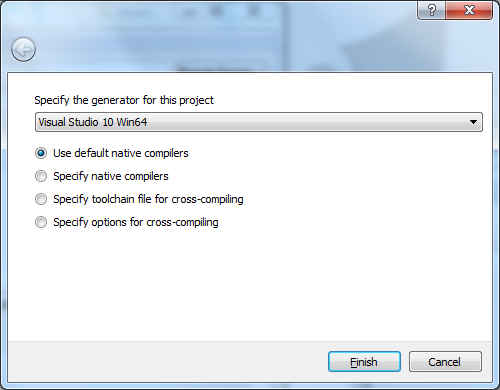
  8. In the combo box, choose a generator for this project e.g. Visual Studio 10 Win64. Click Finish.

    A Error message appears.
  9. Close the message.

  10. In the list box, select Boost_INCLUDE_DIR. Then click the browse [...] button.

    The Browse For Folder dialog box appears.
  11. Choose the root folder containing Boost e.g. E:\Work\src\boost_1_52_0\. Click OK.

    Note: the boost folder containing the header include files should be underneath the root folder.
  12. Click Configure again.

    The configuration files are created.
  13. Toggle on WITH_GDAL and WITH_GEOTIFF. Click Configure.

    An error message appears.
  14. Close the message. Select GDAL_INCLUDE_DIR. Click the browse [...] button.

    The Browse for Folder dialog box appears.
  15. Select the folder containing the GDAL header include files e.g. E:\Work\src\gdal-1.9.2\gcore\. Click OK.
  16. Select GDAL_LIBRARY. Click the browse [...] button.

    The Select File for GDAL_LIBRARY dialog box appears.
  17. Select the GDAL library e.g. E:\Work\src\gdal-1.9.2\gdal_i.lib. Click Open.
  18. Click GEOTIFF_INCLUDE_DIR. Click the browse [...] button.

    The Browse for Folder dialog box appears.
  19. Select the folder containing the libGeotiff header files e.g. E:\Work\src\libgeotiff-1.4.0\. Click OK.
  20. Select GEOTIFF_LIBRARY. Click the browse [...] button.

    The Select File for GEOTIFF_LIBRARY dialog box appears.
  21. Choose the GEOTIFF library file e.g. E:\Work\src\libgeotiff-1.4.0\geotiff_i.lib. Click Open.
  22. Click Generate.

    An error message appears.
  23. Close the message. Click TIFF_INCLUDE_DIR. Click the browse [...] button.

    The Browse for Folder dialog box appears.
  24. Select the folder containing the TIFF header files e.g. E:\Work\src\tiff-4.0.3\libtiff\. Click OK.
  25. Click TIFF_LIBRARY. Click the browse [...] button.

    The Select File for TIFF_LIBRARY dialog box appears.
  26. Select the TIFF library file e.g. E:\Work\src\tiff-4.0.3\libtiff\libtiff_i.lib. Click Open.
  27. Click Generate.

    The Microsoft Visual Studio project files are generated the specified destination build folder.
  28. Close CMake.
  29. Run Microsoft Visual Studio 2010. Open up the libLAS.sln file.
  30. Press F7 to build all the projects.

    Note: it might be necessary to add in the paths to the include files if the compiler cannot locate them in the build process.

    The 64 bit liblas binaries are generated.

Monday, March 25, 2013

Build the basic liblas for 64 bit Windows (no GDAL and GeoTIFF support)

In order to build 64 bit Windows binaries of liblas, the header files and 64 bit binaries for Boost must be accessible by Microsoft Visual Studio. The CMake utility from http://www.cmake.org needs to be used to configure and generate the Microsoft Visual Studio project files for liblas. The following illustrates how I build the basic liblas 64 bit binaries (no GDAL or GeoTIFF support). Note that the 64-bit executables may not run successfully even though the compilation is successful depending on how the source code was written.
  1. Download the latest liblas source code from http://www.liblas.org/download.html. Extract the files to a folder e.g. E:\Work\src\liblas-1.7.0\.
  2. On the Windows Desktop, select Start | All Programs | CMake 2.8 | CMake (cmake-gui).

    The CMake application appears.
  3. In the Where is the source code field, click Browse Source.

    The Browse for Folder dialog box appears.
  4. Select the folder where the liblas archive was extracted, e.g. E:\Work\src\libLAS-1.7.0\. Click OK.
  5. In the Where to build the binaries field, click Browse Build.

    The Browse for Folder dialog box appears.
  6. Select or create the folder where the Microsoft Visual Studio solution project files will be created e.g. E:\Work\src\libLAS-1.7.0\bin\. Click OK.

  7. Click Configure.

    A prompt appears.
  8. In the combo box, choose a generator for this project e.g. Visual Studio 10 Win64. Click Finish.

    A Error message appears.
  9. Close the message.

  10. In the list box, select Boost_INCLUDE_DIR. Then click the browse [...] button.

    The Browse For Folder dialog box appears.
  11. Choose the root folder containing Boost e.g. E:\Work\src\boost_1_52_0\. Click OK.

    Note: the boost folder containing the header include files should be underneath the root folder.
  12. Click Configure again.

    The configuration files are created.
  13. Click Generate.

    The Microsoft Visual Studio project files are generated the specified destination build folder.
  14. Close CMake.
  15. Run Microsoft Visual Studio 2010. Open up the libLAS.sln file.
  16. Press F7 to build all the projects.

    The 64 bit liblas binaries are generated.

Monday, August 20, 2012

View LiDAR LAS files with CloudCompare's ccViewer

I found this new open-source software CloudCompare for 3D point cloud and mesh processing, which comes along with a light weight viewer ccViewer. The interesting thing for LiDAR professionals is that the viewer is compiled with support for reading and displaying LiDAR LAS files. The display performance is pretty good even for large LAS files, but that's just about it for the viewer, other than some basic viewing perspectives and basic display coloring. It only has the ability to color the LiDAR points by classification or by elevation. On the other hand, the source code is available and if you have the time and the inclination, you can fork or contribute to the project and make the software work better with LiDAR LAS files.

Running ccViewer
To run the software, simply double click on the ccviewer.exe executable extracted out from the downloaded binaries as shown below. Note the presence of the libLAS.dll in the extracted folder.


This should open up the ccViewer application window.


Now all that is needed to display LiDAR LAS files is to drag and drop the file onto the ccViewer application window.

The following prompt might appear but simply click OK and the LiDAR point cloud will be displayed.


 For more information, visit the project's web site at http://www.danielgm.net/cc/, where the binaries and souce code for the CloudCompare and the ccViewer software can be downloaded.

Monday, July 23, 2012

Remove noisy spikes from LiDAR data using SAGA GIS and SRTM data

LiDAR data collected from the field contains noise in the form of spikes or zingers (extremely high or low points) and/or clouds. Typically these erroneous points are reclassified as noise from the point cloud by using high-low filters, median filters or other statistical methods. An example is shown in the screenshot below.


I have in mind using the globally available Shuttle Radar Topography Mission (SRTM) data to form an envelope to filter away the extreme noise points using SAGA GIS. SRTM data can be downloaded from http://www2.jpl.nasa.gov/srtm/.

From the SRTM elevation data, a height value can be added and subtracted to form a volume envelope. Any LiDAR points inside the envelope are valid points while any points outside the envelope are noise. The following illustrates a possible workflow.

Load and reproject an SRTM tile to match the LiDAR data

  1. Start SAGA GIS.
  2. Select Modules | File | Grid | Import | Import USGS SRTM Grid.

    The Import USGS SRTM Grid dialog appears.

  3. Click the Files field. Then click the browse [...] button. Browse and select an SRTM file e.g. N39W084.hgt. Click Open. Click Okay.

    The SRTM data is loaded.

    Note: the SRTM data is in a geographical latitude-longitude coordinate system while the LiDAR data is in a projected coordinate system e.g. UTM 17 North.
  4. Select Modules | Projection | Coordinate Transformation (Grid).

    The Coordinate Transformation (Grid) dialog box appears.

  5. In the EPSG Code | Projected Coordinate Systems field, choose a coordinate system e.g. WGS 84 / UTM zone 17N.
  6. In the Data Objects | Grid system field, choose the SRTM grid system e.g. 0.000833; 1201x 1201y; -84x 39y.
  7. In the Data Objects | Grid system | source field, choose the SRTM grid layer e.g. 01.N39W084.


  8. Click Okay.

    The User Defined Grid dialog box appears.


  9. Click Okay.

    The SRTM grid is reprojected into UTM 17 North.

    Note: there are now two SRTM grid layers with the same name. For clarity, we shall remove the first SRTM grid layer.
  10. In the Data tab of the Workspace pane, select the first SRTM grid layer e.g. 01. N39W084.
  11. Press the mouse right click button. In the pop up menu, select Close.


  12. Click Yes and Okay.

    The original SRTM grid layer is removed.
Load the LiDAR LAS file
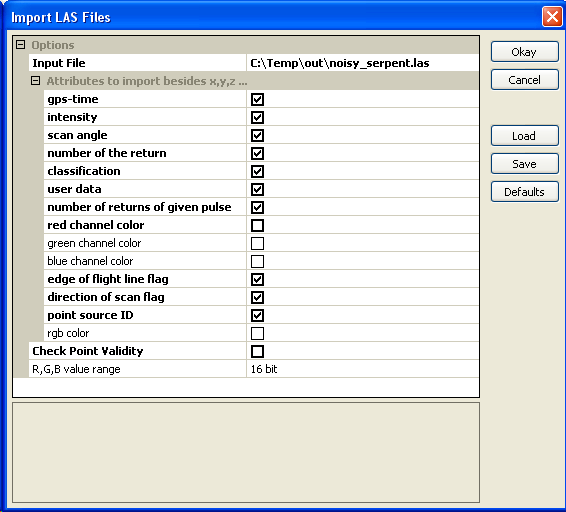
  1. Select Modules | File | Shapes | Import | Import LAS Files.

    The Import LAS Files dialog box appears.
  2. Click the Input file field. Click the browse [...] button and select and open a LiDAR LAS file .e.g. noisy_serpent.las.
  3. In the Attributes to import besides x,y,z list, toggle on all the attributes you want to retain.


  4. Click Okay.

    The LAS file is loaded as a PointCloud.
Assign the SRTM elevations to each LiDAR point
  1. Select Modules | Shapes | Grid | Grid Values | Add Grid Values to Shapes.

    The Add Grid Values to Shapes dialog box appears.
  2. In the Shapes field, choose the LiDAR point cloud layer e.g. 01. noisy_serpent.
  3. In the Grids field, click the [...] button. Choose the reprojected SRTM grid layer e.g. 01.N39W084.


  4. Click Okay.

    The SRTM elevation values are added as a new attribute to the LiDAR point cloud layer.
Create a valid elevation indicator attribute from the LiDAR point and the SRTM elevation values
This part is the key to the workflow. The Calculator is used to create a field that counts two tests: (1) if a point is above the bottom of the SRTM envelope and (2) if a point is below the top of the SRTM envelope. A count of 2 means the point is within the SRTM envelope. 
  1. Select Modules | Shapes | Point Clouds | Tools | Point Cloud Attribute Calculator.

    The Point Cloud Attribute Calculator dialog box appears.
  2. In the Point Cloud field, choose the LiDAR point cloud layer e.g. 01. noisy_serpent.
  3. In the Result field, choose [create].
  4. In the formula field, type in the following (without spaces):

    ifelse(gt(c,n-100),1,0)+ifelse(lt(c,n+100),1,0)

    Note: the point cloud attribute fields are in alphabetical order a, b, c....etc. c indicates the z attribute, n indicates the SRTM elevation field in this example and 100 is half the thickness of the envelope around the SRTM elevation.

    Note: the statement says that if the point z is greater than the bottom of the SRTM envelope (n-100) then assign 1, otherwise assign 0; and if the point z is less than the top of the envelope (n+100), then add another 1. Otherwise add 0.
  5. In the Output Field Name field, type in valid.
  6. In the Field data type field, change to 2 byte signed integer.


  7. Click Okay.

    The Shapes point layer is created with a new attribute field valid containing values 1 and 2.
Filter out the LiDAR points outside the SRTM envelope

  1. Select Module | Shapes | Points | Point Filter.

    The Points Filter dialog box appears.
  2. In the Points field, choose the previously created point cloud layer e.g. 02. noisy_serpent_valid.
  3. In the Attribute field, choose the field created previously e.g. valid.
  4. In the Filtered Points field, choose [create].
  5. In the Filter Criterion field, choose keep maxima (with tolerance). Leave the tolerance at 0.


  6. Click Okay.

    The filtered Shapes point layer 01.noisy_serpent_valid[Filtered] is created. This layer contains only the LiDAR points inside the SRTM envelope.
Save as LAS
Before the filtered points can be saved as a LAS file, the Shapes point layer has to be converted to a point cloud layer. 
  1. Select Module | Shapes | Point Cloud | Conversion | Point Cloud from Shapes.

    The Point Cloud from Shapes dialog box appears.
  2. In the Shapes field, choose the Shapes point layer e.g. 01. noisy_serpent_valid[Filtered].
  3. In the Z Value field, choose Z.
  4. In the Output field, choose all attributes.


  5. Click Okay.

    The Shapes point layer is converted to a point cloud layer 03. noisy_serpent_valid[Filtered].

  6. Select Modules | File | Shapes | Export | Export LAS Files.

    The Export LAS Files dialog box appears.
  7. In the Point Cloud field, choose the filtered point cloud layer e.g. 03. noisy_serpent_valid[Filtered].
  8.  For each LAS field to export out, change the [not set] value to the appropriate attribute field.
  9. If necessary, enter values in the Offset X, Offset Y fields that match the original LAS file.
  10. Optional. Change the Point Data Record field accordingly e.g. to version 2.
  11. In the Output field, define the output file name e.g. clean_serpent.las.


  12. Click Okay.

    The filtered output LAS file is created without the zingers.