Showing posts with label Chrome Web Store. Show all posts

Monday, June 27, 2022

WebApp for Singapore Weather forecasts rewritten using Flutter

I thought the old Singapore Weather Nowcast WebApp at this site https://dominoc925-pages.appspot.com/webapp/weather_sg/default.html written using the AngularJS framework and Bootstrap was a good candidate for a Flutter app. So I rolled up the sleeves and rewrote it using Flutter. Now it has Material design and this is how it looks and works.

4 day outlooks

For the Flutter version, I included additional data from the National Environment Agency (NEA)'s 4 day outlooks with temperature, wind and humidity values.


2 hour nowcasts

The 2 hour weather nowcast is now displayed in a responsive 2 pane display.


On small screens, a tab bar will appear displaying the nowcast list and map on separate tabs. 


24 hour forecasts

The new 24 hour forecasts are separated by 3 tabs as shown in the screenshot below. Clicking each tab will show the forecast for that time period. And like the 2 hour nowcast display, the 24 hour forecasts display is also responsive to screen sizes.

To try out the new Flutter WebApp, visit this web site: https://dominoc925-pages.appspot.com/webapp/weather_sg/default.html.


Wednesday, June 10, 2015

WebApp for monitoring traffic incidents in Singapore

This web app allows users to monitor traffic incidents in Singapore including accidents, vehicle breakdowns, obstacles, road blocks, traffic diversions etc. in Singapore (updated every 2 minutes) on a Google Maps backdrop by subscribing to the traffic incidents geoRSS feed. The incidents are shown as clickable and color coded icons with tool tips. 


Clicking on the icon will bring up more details about the incident. 

Together with Google's StreetView, users can truly immerse themselves into the incident environment.


The traffic incidents are also shown as a list on the right pane. The list can be sorted by incident category, and date-time - either in ascending or descending order. Clicking the Maps hyperlink will automatically locate, zoom, and center the incident in the Map view.
The WebApp can be launched from this link http://dominoc925-pages.appspot.com/webapp/trafmon_sg/default.html

Monday, April 21, 2014

A simple Chrome Web App for creating animated GIF files

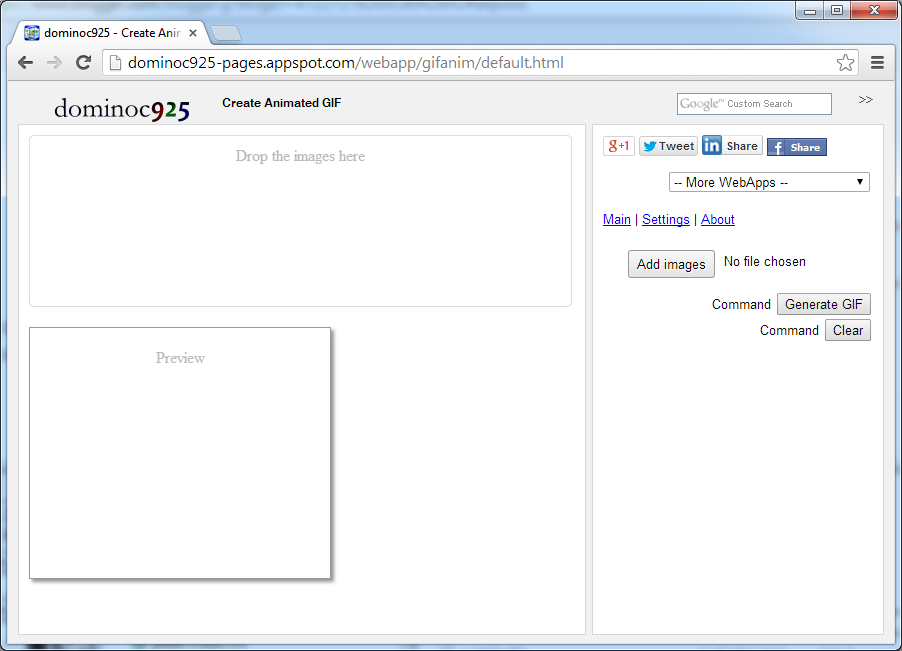
Recently, it seems animated GIFs have been making a come back and used on social networks like Google+. I thought of making a simple Chrome Web App for creating the animated GIF files (using only Javascript, HTML5 and the gif.js library) without having to upload to a server for processing, i.e. the processing takes place within the web browser only. The resultant WebApp is available here on http://dominoc925-pages.appspot.com/webapp/gifanim/default.html.


Using the WebApp is easy. The following steps show how to create an animated GIF with the default settings.

  1. Simply drag and drop the image frames into the box provided. Or click the Add Image button.

    The Open dialog box appears.

  2. Select one or more image files. Click Open.

    The thumbnails of the selected files appear in the box.

  3. Click Generate GIF.

    The animated GIF file is created.

  4. To save the animated GIF file, mouse right click on the animation. Select Save Image As.


    The Save As dialog appears.
  5. Type in a file name. Click Save.

    The animated GIF file is saved.
Delete or change the order of the image frames
  1. If you want to change the order of the images, simply click on the image thumbnail.

    The Move previous, delete, and Move next icons appear below the thumbnail.

  2. Click Move previous to move the selected image before the previous image frame.
  3. Click Move next to move the selected image after the next image frame.
  4. Click Delete to delete the selected image.
Changing the default settings
  1. If you want to change the default settings, click on Settings on the right pane.


  2. In the Quality field, choose another value.
  3. In the Animation speed field, choose another value.
  4. In the Repeat field, choose another value.
  5. In the Canvas size field, choose another value.
  6. Click Generate GIF to see the effects. 

Monday, December 23, 2013

Seattle 911 incidents monitoring WebApp

This WebApp allows users to monitor the City of Seattle's Fire Department's real time 911 dispatches (updated every five minutes) and the Seattle Police Department's 911 dispatch incident responses that are non-confidential (updated every 4 hours) on a Google Maps backdrop. Simply choose the appropriate feed on the 911 feed drop down menu on the right pane.


The 911 incidents are shown as clickable icons with tool tips on Google Maps. Clicking on an icon will bring up more details about the incident. Users can utilize additional built-in Google Maps features such as Street View, or 3-D oblique 45 degrees views to immerse themselves into the incident environment.


The 911 incidents are also shown as a list on the right pane. The list can be sorted by incident category, date-time and address - either in ascending or descending order. Clicking the Maps hyperlink will automatically locate, zoom, and center the incident in the Map view.

The WebApp can be launched from this link http://dominoc925-pages.appspot.com/webapp/seattle911mon/default.html

Monday, January 7, 2013

Earthquake Monitor Web App

Since Google has announced that it will be closing down the iGoogle site, I decided to migrate some of the Google Gadgets that I had written to Chrome Web Apps for the Chrome Web Store. I consolidated the various earthquake gadgets using the USGS, British Geological Survey, Euro-Mediterranean Seismic Monitoring Center, and the New Zealand GeoNet earthquake feeds into a single Web App.

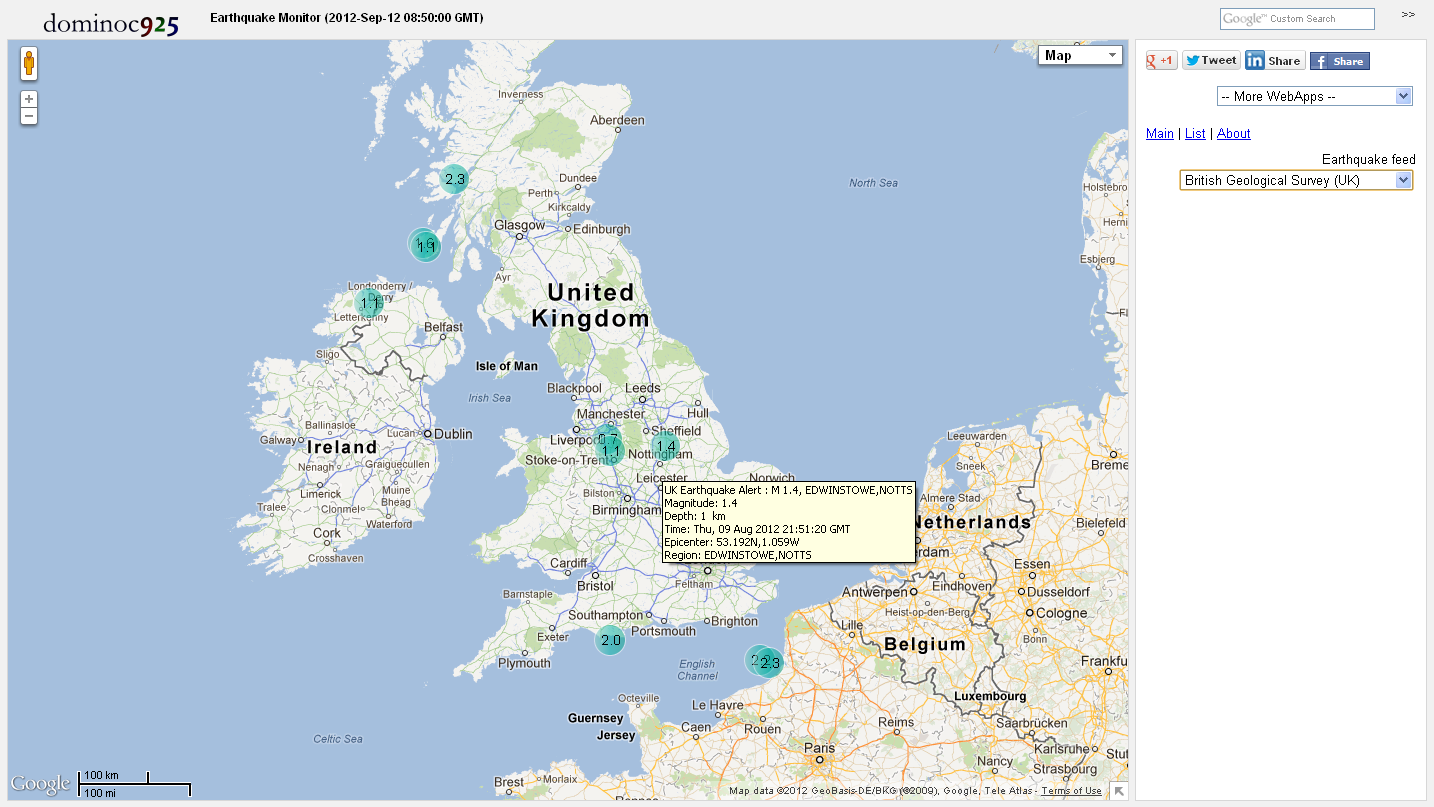
The screenshot below shows the Earthquake Monitor Web App. It can be installed through the Chrome Web Store (search for Earthquake Monitor) or directly from this url address http://dominoc925-pages.appspot.com/webapp/quakemon/default.html.


Simply choose an earthquake source feed in the side bar's Earthquake feed combo box as shown below.

The earthquake epicenters will be displayed as color coded icons by depth and time on Google Maps. Hovering the cursor on the icons will display a tool tip showing summary details about the earthquake event. Clicking on the icon will open up a page showing more detailed information.


Clicking on the List link in the side bar will display a list view of the earthquake events. The list can be sorted according to the time, depth or magnitude of the earthquake event. Clicking on the Map link will center and zoom to the earthquake epicenter in Google Maps.