Monday, May 19, 2014

Trainsity Recife Metro Android App

Find your way around the FIFA World Cup 2014 city of Recife, Brazil using the high resolution vector maps of the MetroRec's Center 1, Center 2, South and Diesel Train Lines. The maps have small file size footprints but with many levels of zoom and can work offline without an Internet connection. Users can tap the train station labels to open Google Maps or Street View, where they can use all the functions of the Google apps to visualize the surrounding area and/or perform routing for directions.

On a mobile handset, the app will display a list of train lines, which when tapped will open up a detail view of the metro transit map, as shown below.

Tapping the station boxes will bring up an option menu where users can choose to display the station in Google Maps or Street View.

The app is also optimized for tablet devices. The layout on a tablet will display both the list and the vector map at the same time, as shown below.

Users can toggle the map to full screen mode by tapping the action bar icon at the top.

The app is available on the Google Play Store. Just click the button below.

Get it on Google Play

Monday, May 12, 2014

Import OpenStreetMap features into QGIS

QGIS 2.2 has a built in function to import OpenStreetMap features into a SpatiaLite database. Using the function requires us to perform three basic steps:
  • Download data
  • Import topology from XML
  • Export topology to SpatiaLite
The following steps illustrate how to import OpenStreetMap features into QGIS.

Download data
  1. Start QGIS. Optional: Navigate the map view to the area where you want to download OpenStreetMap features.


  2. Select Vector | OpenStreetMap | Download data.

    The Download OpenStreetMap data dialog box appears.

  3. Optional. Choose an extent method e.g. From map canvas.
  4. In the Output file field, click the [...] button.

    The Save As dialog box appears.

  5. Type in a file name, e.g. fortaleza.osm. Click Save. Click OK.

    The OpenStreetMap data has been downloaded.

  6. Click OK. Click Close.
Import topology from XML
  1. Select Vector | OpenStreetMap | Import topology from XML.

    The OpenStreetMap Import dialog box appears.

  2. In the Input XML file (*.osm) field, click the [...] button.

    The Open dialog box appears.

  3. Browse and select the previously downloaded *.osm file, e.g. fortaleza.osm. Click Open.

    The Output SpatiaLite DB file and Connection name fields are populated with default values.

  4. Click OK.

    The OpenStreetMap tables are imported into the SpatiaLite DB.

  5. Click OK. Click Close.
     
Export topology to SpatiaLite.
  1. Select Vector | OpenStreetMap | Export topology to SpatiaLite.

    The Export OpenStreetMap topology to SpatiaLite dialog box appears.

  2. In the Input DB file field, click the [...] button.

    The Open dialog box appears.
  3. Browse and select the previously created SpatiaLite DB file, e.g. fortaleza.osm.db. Click Open.
  4. In the Export type field, toggle on a geometry feature type, e.g. Polylines.


  5. Optional. In the Output layer name field, type in a layer name to use, e.g. fortaleza_polylines.
  6. Click OK.

    The layer is created in QGIS.
  7. Click OK.


  8. Optional. Repeat the previous steps 4-6 for additional geometry types.
  9. Click Close.

Monday, May 5, 2014

How to enable MultiWindow support for Android Apps on Samsung devices

Some Samsung devices such as the Note range of handsets can display two apps at the same time in two windows. Samsung calls this two window feature as MultiWindow and supported apps are activated from Samsung's Traybar, a vertical or horizontal strip launcher on the sides of the screen. Tweaking your Android app so that it can run in MultiWindow mode is very easy - just add some meta data tags in the AndroidManifest.xml file as shown in the example below. Then recompile the app.

<?xml version="1.0" encoding="utf-8"?>
<manifest xmlns:android="http://schemas.android.com/apk/res/android"
package="com.dom925.trainsity.kualalumpur"
android:installLocation="auto"
android:versionCode="3"
android:versionName="1.0.2" >
<uses-permission android:name="android.permission.INTERNET" />"
<uses-permission android:name="android.permission.ACCESS_NETWORK_STATE" />

<uses-sdk
android:minSdkVersion="11"
android:targetSdkVersion="19" />
 
<application
android:name="com.dom925.trainsity.kualalumpur.App"
android:allowBackup="true"
android:icon="@drawable/ic_launcher"
android:label="@string/app_name"
android:theme="@style/AppTheme" >
<activity
android:name="com.dom925.trainsity.kualalumpur.MapListActivity"
android:label="@string/app_name" >
<intent-filter>
<action android:name="android.intent.action.MAIN" />
<category android:name="android.intent.category.LAUNCHER" />
<!-- add this category tag here -->
<category android:name="android.intent.category.MULTIWINDOW_LAUNCHER" />
</intent-filter>
</activity>
<!-- some stuff deleted here for clarity -->
<!-- add the following meta-data tags here -->
<meta-data 
android:name="com.samsung.android.sdk.multiwindow.enable" 
android:value="true" />
<meta-data 
android:name="android.intent.category.MULTIWINDOW_LAUNCHER" 
android:value="true" />
<meta-data 
android:name="com.sec.android.intent.category.MULTIWINDOW_LAUNCHER" 
android:value="true" />"
</application>
 
</manifest>
An app that supports MultiWindow will be visible in the Traybar launcher. Simply drag out the app from the Traybar launcher. The screenshot below shows a Note device running a Chrome browser and a metro app in MultiWindow mode.

Monday, April 28, 2014

"Cannot find repository" error and installing Tizen SDK for Wearable

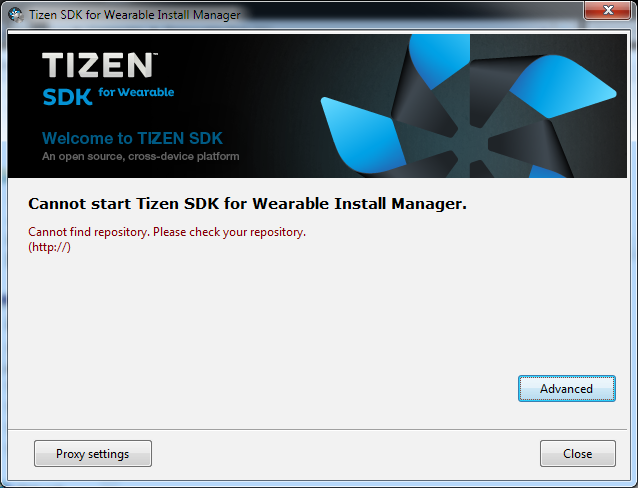
The Tizen SDK for Wearable is one of the prerequisite software that must be installed if you want to develop applications for the Samsung  Gear, as detailed in the website http://developer.samsung.com/samsung-gear. So I downloaded and ran the installer, which popped up the following error message "Cannot start Tizen SDK for Wearable Install Manager. Cannot find repository. Please check your repository.", as shown in the screen shot below.


I could not find any instructions on the page on what this repository is about. Eventually, I figured out that I needed to download an appropriate SDK image for my development platform - an Intel Windows 7 64 bit machine. These images can be downloaded from the same page https://developer.tizen.org/downloads/tizen-sdk?langswitch=en#wearable.

Once the image file has been downloaded, do the following:

  1. Click the Advanced button.

  2. Toggle on SDK Image. Click the file icon. Browse and select the downloaded SDK image file, e.g. tizen-wearable-sdk-TizenSDK_1.0.0b2-windows64.zip. Click Open.


    The following appears.


  3. Click OK.

  4. Click Next.

  5. Agree to the Licence Agreement. Click Next.

  6.  Click Next.

  7. Optional. In the Install Tizen SDK for Wearable field, specify another folder.
  8. Click Install.


    The Intel Hardware Accelerated Execution Manager Setup wizard appears.
  9. Click Next.

    The SDK is installed.
  10. Click Close

Monday, April 21, 2014

A simple Chrome Web App for creating animated GIF files

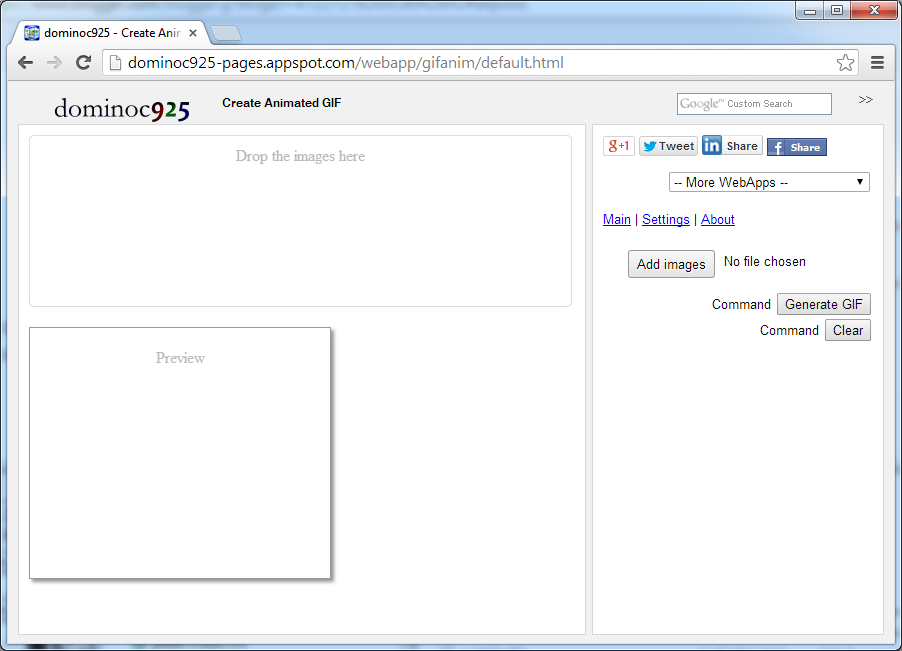
Recently, it seems animated GIFs have been making a come back and used on social networks like Google+. I thought of making a simple Chrome Web App for creating the animated GIF files (using only Javascript, HTML5 and the gif.js library) without having to upload to a server for processing, i.e. the processing takes place within the web browser only. The resultant WebApp is available here on http://dominoc925-pages.appspot.com/webapp/gifanim/default.html.


Using the WebApp is easy. The following steps show how to create an animated GIF with the default settings.

  1. Simply drag and drop the image frames into the box provided. Or click the Add Image button.

    The Open dialog box appears.

  2. Select one or more image files. Click Open.

    The thumbnails of the selected files appear in the box.

  3. Click Generate GIF.

    The animated GIF file is created.

  4. To save the animated GIF file, mouse right click on the animation. Select Save Image As.


    The Save As dialog appears.
  5. Type in a file name. Click Save.

    The animated GIF file is saved.
Delete or change the order of the image frames
  1. If you want to change the order of the images, simply click on the image thumbnail.

    The Move previous, delete, and Move next icons appear below the thumbnail.

  2. Click Move previous to move the selected image before the previous image frame.
  3. Click Move next to move the selected image after the next image frame.
  4. Click Delete to delete the selected image.
Changing the default settings
  1. If you want to change the default settings, click on Settings on the right pane.


  2. In the Quality field, choose another value.
  3. In the Animation speed field, choose another value.
  4. In the Repeat field, choose another value.
  5. In the Canvas size field, choose another value.
  6. Click Generate GIF to see the effects. 

Monday, April 14, 2014

Create features using precision key-ins in QGIS

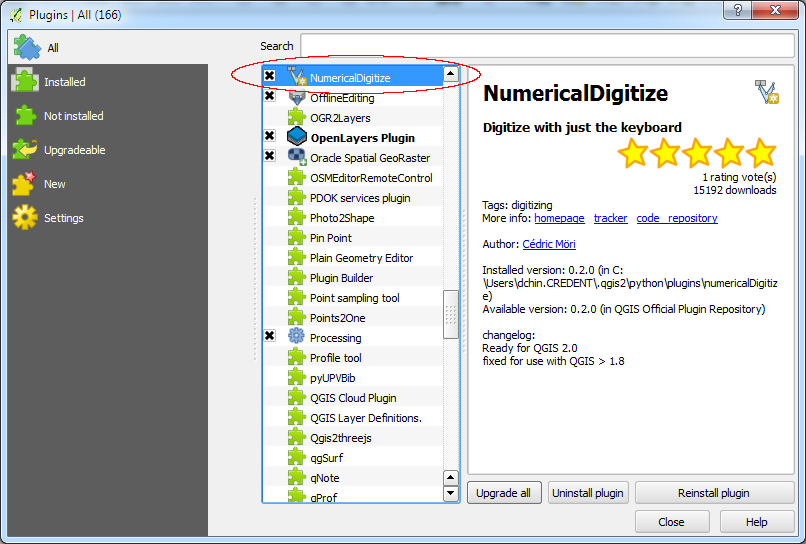
Given some MH370 satellite imagery debris coordinates, I wanted to enter them in QGIS to see the precise locations on a map; but I could not find a precision key-in function. That is until I found out that there is a plug-in - NumericalDigitize but it must be installed from the Plug-in dialog.


If the plug-in is installed, then the highlighted icon is available in the Digitize tool bar.


Using NumericalDigitize to precisely enter feature coordinates is easy, as shown below.

  1. In QGIS, create a new layer, or load in a new layer, e.g. pointlayer.shp.
  2. Toggle on Editing.


  3. Click on the NumericalDigitize icon.

    The Add numerical feature dialog box appears.

  4. Optional. Toggle on the appropriate coordinate CRS, e.g. in the CRS of the Project.
  5. In the X field, type in a coordinate value, e.g. 90.3.
  6. In the Y field, type in a coordinate value, e.g. -44.5.


  7. Repeat steps 5 and 6 for more coordinates.
  8. Click OK.

    The feature(s) are created at the precise coordinates.


Monday, April 7, 2014

Enable the Nexus 7 to be recognized by the Android Development Toolkit ADT

After connecting a Nexus 7 running stock Android Jelly Bean 4.2.2 to a Windows 7 computer, I assumed that the Android Development Toolkit's ADB utility would be able to detect the connected Nexus 7 device. But it wasn't so. I learned later that the Developer's Options on the Nexus 7 is not enabled by default. It needs to be exposed first.

The following steps show how to expose the Developer's Options.

  1. On the Nexus 7, open up the Settings screen. Expand About Tablet.

    Information about the tablet appears.
  2. Touch the Build Number several times.

    The message "Congratulations, you are a developer" or something similar appear.
  3. Close and reopen the Settings screen.

    The setting {} Developer options should be displayed.
  4. Touch the Developer options.
  5. Toggle on USB debugging.

    The Nexus 7 should be recognized by the ADB.