Monday, October 24, 2022

QGIS unable to edit SpatiaLite database layer workaround

Recently I upgraded to QGIS 3.26 on Ubuntu 22.04 and found that I was unable to edit my existing SpatiaLite database layers, i.e. the Toggle Editing tool bar icon could not be enabled. The screenshot below illustrates the problem.

While I have not found the cause of the problem, I found a simple workaround to the issue: just create a new SpatiaLite database and import the layers from the old database. The newly imported database layers can be enabled for editing. 


Create a new SpatiaLite database

  1. In the Browser pane of QGIS, press the right mouse button on the SpatiaLite node.


    A pop up menu appear.

  2. Choose Create New Database.


  3. In the Name field, type in a new SpatiaLite database file name, e.g. new_rail.sqlite. Click Save.

    The database is created.


Import layers from the old SpatiaLite database to the new SpatiaLite database

  1. If the layer e.g. node from the old SpatiaLite database e.g. rail.sqlite is not displayed in QGIS, then add the layer to the map window.


  2. In the QGIS menu, select Database | DB Manager.

    The DB Manager dialog box appears.


  3. Expand the SpatiaLite Providers tree node and double click on the newly created SpatiaLite database, e.g. new_rail.sqlite.


  4. Click Import Layer/File.

    The Import vector layer dialog box appears.


  5. In the Input drop down list, choose the layer from the old database, e.g. nodes. In the Output Table field, type in a new table name, e.g. nodes. Click OK.

    The old layer is imported into the new database.

Displaying the newly imported Spatialite layer

  1. In QGIS, select Layer | Add Layer | Add SpatiaLite Layer.


  2. In the Connections drop down list, select the new SpatiaLite database, e.g. new_rail.sqlite. Click Connect.

  3. In the table list, select the new layer nodes. Click Add.

    The new nodes layer is displayed in the map window.


  4. Select the new layer nodes in the Legend pane.

    The Toggle Editing icon is enabled now.


Monday, October 17, 2022

Auto mount an SD card upon insert on Ubuntu Server

I have a headless Raspberry Pi board running Ubuntu 20.04.x server with a USB SD card reader. I wanted the system to automatically mount an SD card to a fixed mount point, e.g. /media/ubuntu/sdcard/ upon card insertion. By default, Ubuntu Server doesn't mount the SD card so I had to do some setup and configuration, as illustrate in the steps below. I had to install some prerequisite software package (udevil) and create a systemd service.

Install udevil package and create mount directory

  1. Open up a Terminal and type in the following command to install udevil.

    $ sudo apt install udevil

  2. Then, create a SD card directory mount point, e.g. /media/ubuntu/sdcard/ with the following command:

    $ mkdir -p /media/ubuntu/sdcard


Add a mount rule to the fstab file

  1. Using a text editor, e.g. vi, open up the system file /etc/fstab.

    $ sudo vi /etc/fstab

  2. Append the following line:

    /dev/sda1 /media/ubuntu/sdcard auto rw,user,exec,umask=000  0  2

    An example fstab file is shown below:
LABEL=writable  /        ext4   defaults        0 1
LABEL=system-boot       /boot/firmware  vfat    defaults        0       1
/dev/sda1       /media/ubuntu/sdcard auto rw,user,exec,umask=000        0       2

Create the devmon Systemd service

  1. In the Terminal, change directory to /etc/systemd/system/.

    $ cd /etc/systemd/system

  2. Using a text editor, e.g. vi, create a file e.g. devmon.service. Enter the following and save the file.

    [Unit]
    Description=Systemd service for running devmon
    [Service]
    Type=simple
    User=ubuntu
    Group=ubuntu
    ExecStart=/usr/bin/devmon
    [Install]
    WantedBy=multi-user.target


  3. In the Terminal, type in the following to generate the service:

    $ sudo systemctl daemon-reload
    $ sudo systemctl enable devmon

  4. Then either reboot the board or run the following command to start the service:

    $ sudo systemctl start devmon

 Monitor the service

  1. In a Terminal, type in the following to monitor the newly create devmon service when an SD card is inserted or unmounted.

    $ journalctl -u devmon -f

 Note: The SD card should be unmounted properly using the following command(s):

$ udevil umount /media/ubuntu/sdcard

- or -

$ sudo umount /media/ubuntu/sdcard

Monday, September 19, 2022

Run Quectel's Connection Manager as a systemd service on Ubuntu

I found myself in possession of a modem by Quectel (https://www.quectel.com) to hook up to a Raspberry Pi running Ubuntu 20.04. I wanted to auto run Quectel's connection manager executable quectel-CM on system start up but found limited information available online from Quectel. So I had to roll up my sleeves and make my own systemd service for that purpose.

This post outlines the steps I took:

Download and compile the quectel-CM executable

  1. Using an Internet browser, download the latest Quectel LTE, 5G Linux USB driver, e.g. Quectel_LTE5G_Linux_USB_Driver_V1.0.zip from https://www.quectel.com/download-zone.
     
  2.  Extract QConnectManager_Linux_V1.0.zip into a folder e.g. /home/ubuntu/Downloads/quectel-CM/.

  3. In a Terminal, change directory to the extracted folder.

    $ cd ~/Downloads/quectel-CM/

  4. Use the make command to compile the connection manager executable.

    $ make

    The quectel-CM executable is compiled.

Place the quectel-CM exe to the run time directory

  1. In a Terminal, type in the following commands to change directory to the extracted directory.

    $ cd /home/ubuntu/Downloads/quectel-CM/

  2. Copy the executable to /usr/local/bin/.

    $ sudo cp quectel-CM /usr/local/bin

Create a systemd service file

  1.  In the directory /etc/systemd/system, use a text editor to create a service file e.g. quectelcm.service.

    $ sudo vi /etc/systemd/system/quectelcm.service

  2. Type in the following lines, save and exit the file:
    [Unit]
    Description=Systemd service for running Quectel's Connection Manager quectel-CM executable
    
    [Service]
    ExecStart=/usr/local/bin/quectel-CM 
    Restart=always
    RestartSec=5
    
    [Install]
    WantedBy=multi-user.target
    

  3. Give the service file the following executable permission:

    $ sudo chmod 664 /etc/systemd/system/quectelcm.service

 Create the service

  1. In the Terminal, type in the following commands:

    $ sudo systemctl daemon-reload
    $ sudo systemctl enable quectelcm

    The quectelcm service is created.


Running and monitoring the service

  1. You can either reboot the Raspberry Pi or type in the following command to start the service in a Terminal.

    $ sudo systemctl start quectelcm

  2. To monitor the quectelcm service, use the journalctl command:

    $ journalctl -u quectelcm -f


Note: In order for quectel-CM to request and set the machine's network address, the software prerequisites net-tools and udhcpc must be installed on the Raspberry Pi.


Monday, July 11, 2022

Blender: how to make an edge flush with another edge by snapping and scaling

Making an plane edge geometry flush with another plane geometry is a typical CAD task. In Blender 3D, it is possible to do the same using simple Move and Scale commands, but with the right settings. 

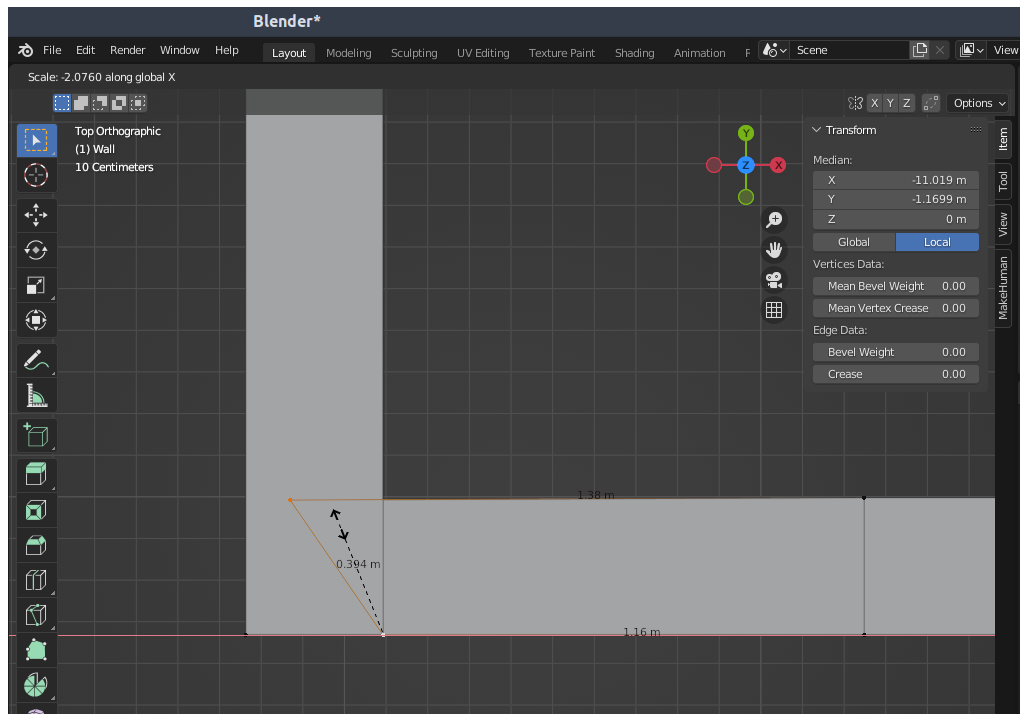
The screenshot below shows 2 plane objects in the top view. This post shows the steps to adjust the bottom plane to snap nicely to the plane on the left.

Set to Snap to Vertex

  1.  In the Blender 3D Viewport menu bar, click the Snap icon and choose Vertex as shown below.


Snap the vertex of one plane to the vertex of the other plane

  1. In the Blender 3D Viewport, make sure the Edit Mode is enabled and Select Mode is Vertex.

  2. In the Blender Toolbar, select the Move icon. Then click on the bottom vertex of the plane to be moved.

  3. On the keyboard, press down CTRL and drag the bottom vertex to snap to the vertex of the other plane.


 Scale the edge vertices by axis to zero

  1. In the Blender 3D Viewport menu, set the Transform Pivot Point to Active Element as shown below.


  2. On the keyboard, press ALT-a to deselect all selection.

  3. In the Toolbar, click the Select Box icon.


  4. Click the top vertex of the plane to be scaled.

  5. Press SHIFT and click the bottom vertex.

    Note: since the Transform Pivot Point is set to Active Element, the scaling will be relative to the last selected vertex.

  6. Press S.

    The plane scales dynamically around the last selected vertex as the cursor is moved.


  7. Limit the direction of scaling to the X-axis (in this example) which is perpendicular to the matching edges. Press X.

    The plane can only scale along the X axis.


  8. Press 0.

    The planes are snapped nicely to one another.

Monday, June 27, 2022

WebApp for Singapore Weather forecasts rewritten using Flutter

I thought the old Singapore Weather Nowcast WebApp at this site https://dominoc925-pages.appspot.com/webapp/weather_sg/default.html written using the AngularJS framework and Bootstrap was a good candidate for a Flutter app. So I rolled up the sleeves and rewrote it using Flutter. Now it has Material design and this is how it looks and works.

4 day outlooks

For the Flutter version, I included additional data from the National Environment Agency (NEA)'s 4 day outlooks with temperature, wind and humidity values.


2 hour nowcasts

The 2 hour weather nowcast is now displayed in a responsive 2 pane display.


On small screens, a tab bar will appear displaying the nowcast list and map on separate tabs. 


24 hour forecasts

The new 24 hour forecasts are separated by 3 tabs as shown in the screenshot below. Clicking each tab will show the forecast for that time period. And like the 2 hour nowcast display, the 24 hour forecasts display is also responsive to screen sizes.

To try out the new Flutter WebApp, visit this web site: https://dominoc925-pages.appspot.com/webapp/weather_sg/default.html.


Monday, May 16, 2022

Convert Geoids from BYN to GTX format with this WebApp

This WebApp came about because I wanted to use some Geoid files for some vertical datum corrections with Proj (which uses .gtx format) but could only find Geoid files in Natural Resources Canada's .byn format.

  1. To convert Geoid BYN files to GTX, open up a browser to the following url: https://dominoc925-pages.appspot.com/webapp/byn2gtx/index.html.


    The WebApp is loaded.


  2. Click the Add File button.

    The File Upload dialog appears.


  3. Browse and select a .byn file e.g. EGM96.byn. Click Open.


    The Geoid file is displayed in a list and the Convert button is enabled.
    Note: the Geoid .byn is loaded locally to the browser and not transferred to some server on the Internet.


  4. Click the Convert button.

    The Geoid file is converted into .gtx format and the Process log and Save As icons are enabled.


  5. Optional. To view the process log, click the Show Process Log icon.

    The process log messages are displayed.


  6. To save the converted .gtx Geoid locally, click the Save Converted File icon.

    The Geoid file is saved.


  7. Optional. If necessary, you can use a GIS software like QGIS to display the converted .gtx file, as shown below.


Monday, May 2, 2022

Time Converter App for time conversion in the browser developed with Flutter

I recently learned Flutter (https://flutter.dev/) - a cross platform SDK for building native Android, IOS, Windows, Linux, Web, and MacOS applications with a single code base. For practice, I built a simple application - a Time Converter App for converting time values from various formats to other formats. The formats include GPS time, Julian date, Unix epoch, and UTC date time.

Using the Time Converter App

  1. To use the application, open up a browser and go to https://dominoc925-pages.appspot.com/webapp/timeconverterapp/.

    The app page is loaded.


  2. In the Convert from drop down field, select the source time format e.g. gps.


  3. In the to format drop down field, select the destination time format e.g.  utc.

  4. In the entry fields, click the clock icon to use the current system time values. Or type in the values e.g. 2207 as shown below.


  5. Click the blue Convert button.

    If the input values are valid, then the converted time value will be shown in the Output field.