FME can be used to write Intergraph Framme linkages. The tricky part is not actually writing the linkages to the graphic DGN elements but figuring out what values to write to the Framme linkages. If you somehow have the correct values from somewhere, then you can use either the FME Workbench or write a FME mapping file to create the linkages.
In this example below, I created an FME mapping file to create DGN line elements with Framme linkages from geometries in a PostGis database table named pipeline. The work is done at the Transformation section of the mapping file as shown in bold below. I am assuming that I have the proper values already calculated and stored as attributes in the PostGis table.
#======================================================================== # Transformation section #======================================================================== POSTGIS pipeline \
postgis_type postgis_line \
i_level %igds_level \
i_color %igds_color \
i_style %igds_style \
i_weight %igds_weight \
i_group %igds_graphic_group \
i_class %igds_class \
ufid %ufid \
feat_num %feat_num \
state_num %state_num \
comp_num %comp_num \
comp_count %comp_count \
dgnfile %dgnfile \
the_geom %geom
IGDS level \
igds_type igds_line \
igds_level %igds_level \
igds_color %igds_color \
igds_style %igds_style \
igds_weight %igds_weight \
igds_graphic_group %igds_graphic_group \
igds_class %igds_class \
geom %geom \
igds_linkage{0}.type framme \
igds_linkage{0}.ufid %ufid \
igds_linkage{0}.feature_num %feat_num \
igds_linkage{0}.state_num %state_num \
igds_linkage{0}.component_num %comp_num \
igds_linkage{0}.comp_count %comp_count \
igds_linkage{0}.design_file %dgnfile

About Geospatial Applications, FME, Visual Studio, gvSIG, Global Mapper, Programming, LiDAR, GIS, Google Maps, SAGA GIS, Android, QGIS
Thursday, December 18, 2008


Create DGN Elements on Correct Levels with FME
By default, if you use the FME Workbench or the FME Universal Translator to create a DGN file, the geometries will be created as DGN graphic elements on level 1 and above incrementally for each feature type. For example as shown in the workbench figure below, the destination of my source feature is set to level 1, as indicated with the text "1" in the title bar.
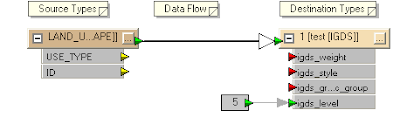
Most times, users will want to control and define the output levels of the output DGN graphic elements since levels is a useful way to organize the graphical data e.g. level 1 for vegetation land use, level 2 for park land use, etc.
In this posting, I describe a way using FME mapping file to define and control the destination level. I am assuming that I have an attribute in the source feature that stores the level number.

Most times, users will want to control and define the output levels of the output DGN graphic elements since levels is a useful way to organize the graphical data e.g. level 1 for vegetation land use, level 2 for park land use, etc.
In this posting, I describe a way using FME mapping file to define and control the destination level. I am assuming that I have an attribute in the source feature that stores the level number.
- Use the FME Universal Translator to generate a mapping file from your source format e.g. ESRI Shape to the destination MicroStation Design format.

- Use a text editor to open up the resultant mapping file e.g. mapping.fme.
The mapping file may look like this.
# ============================================================================
# Source feature type definition section
# ============================================================================
SHAPE_DEF LAND_USE \
SHAPE_GEOMETRY shape_polygon \
USE_TYPE char(50) \
IGDS_LEVEL number(10,0) \
ID number(10,0)
# ============================================================================
# Transformation section
# ============================================================================
SHAPE LAND_USE \
USE_TYPE %USE_TYPE \
ID %ID
IGDS 1 \
igds_type igds_solid \
USE_TYPE %USE_TYPE \
ID %ID - In the Transformation section for the source format, add in the following line in bold.
SHAPE LAND_USE \
USE_TYPE %USE_TYPE \
IGDS_LEVEL %IGDS_LEVEL \
ID %ID - In the Transformation section for the destination IGDS format, replace the number "1" with the text "level" and add in the following line in bold.
Note: igds_level must be in lower case.
IGDS level \
igds_type igds_solid \
USE_TYPE %USE_TYPE \
igds_level %IGDS_LEVEL \
ID %ID - Save the changes and close the mapping file. Now when you run the translation, the DGN graphic elements will be created in the level defined in the IGDS_LEVEL attribute of the source feature.

Wednesday, November 26, 2008
Calculating Polygon Centroids in GeoMedia
GeoMedia's Functional Attributes or Update Attributes commands can be used to calculate the centroid of polygon geometries. For instance, in the screen shot below, I have two polygon geometries that I want to calculate the centroid coordinates and I want to store the values as database attributes associated with the geometries.
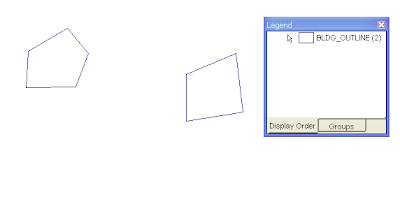
At the moment, the polygon geometries' database attributes are blank as shown below.
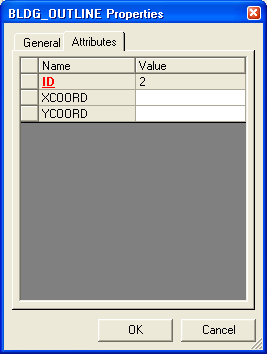
The steps are as follows:

At the moment, the polygon geometries' database attributes are blank as shown below.

The steps are as follows:
- In GeoMedia, select Edit > Attribute > Update Attributes.
The Update Attributes dialog box appears. - In the Update features in box, expand your read/write connection node and select the polygon feature you want to update e.g. BLDG_OUTLINE.
The Update Attributes dialog box may look like this.
- Click the cursor on the attribute field you want to update with the polygon geometries' centroid X coordinate e.g. XCOORD.
- Click Expression.
The Expression dialog box appears. - In the Expression field, type in the following string:
X(CENTERPOINT(Input.Geometry), Constant.ProjectedMeas, Constant.METER))
Note: Replace Input.Geometry with the name of your geometry field. The RefSpace argument can be either Constant.ProjectedMeas or Constant.TrueMeas. The UnitOfMeasure argument can be angular units (if Constant.TrueMeas is used) or linear units like Constant.METER, Constant.INCH, etc.
The Expression dialog box may look like this.
- Click OK.
- Repeat the steps 3 to 7 for the Y coord field. The expression string for the Y coord may look like this:
Y(CENTERPOINT(Input.Geometry), Constant.ProjectedMeas, Constant.METER))
At the end, the Update Attributes dialog box may look like this.
- Click Apply.
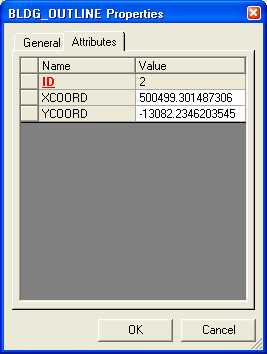
The centroids of the polygon geometries are calculated and updated into the attribute fields. - Click Close.


Monday, November 10, 2008
Use Google Maps to create Pin Maps
Prior to Google Maps, either you use a paper map and stick some pins on it to mark locations or you could buy some mapping software like MapInfo, ArcView to do the job; on top of that you had to buy some map data from somebody and that could burn a big hole in your pocket. But Google Maps provide you with some decent pin mapping capabilities for free with reasonable looking maps.
- To start, open up your favorite browser and go to http://maps.google.com. You should click on the My Maps link.
You should see a page like this.
- Click Create new map.
- If you like, in the Title field type in a meaningful map title, e.g. PinMap, and a description.

Note: Toggle Unlisted on if you do not want to share the map to everybody. - In the Google Map canvas, navigate to the location you want to place a pin.
Note: You can use the Search Maps function to locate places by street address if you wish. For example, I can type in '38 Jalan Ikan Merah, Singapore' in the search entry field and click the button as shown below.
The geocoded location is displayed.

- Click the Add a Placemark button at the top of the map canvas (the icon that looks like a reverse tear drop).
The cursor becomes to a cross hair marker and you are prompted to "click to place me on the map".
- Click a point on the map canvas.
The Info balloon pops up.
- In the Title field, type in a meaningful name, e.g. Pin1 and enter a description if necessary. Note that you can change the icon from the default if you wish here.
- Click OK.
- Repeat steps 4-8 to place more pins.
- When all pins have been placed, the page may look like this.

- That's it, you're done. You can create and display more than one layers of pins if you wish. If you made a mistake, simply click on the pin and choose Delete to remove the pin.


Friday, November 7, 2008
R.S.O. Borneo (M) Projection Conversion Calculator

To convert lat/lon coordinates to easting/northing coordinates, simply type in the lat/lon coordinates below and click Convert to Easting, Northing.
Equations for the coordinate conversions are from this site.
Tuesday, November 4, 2008
Creating your own toolbar in GeoMedia
You can create your own toolbar in GeoMedia. In fact, it is even necessary to create your own toolbar sometimes - for instance, when debugging your custom command there is a useful Unload Command that you can use to unload your custom command from the GeoMedia application process so that you can recompile and overwrite your dll. This command is not exposed out on the GeoMedia menus or toolbars.
Here are the steps to create your own toolbar.
Sometimes you want to remove a few buttons or even remove the toolbar entirely. Here are the steps to do that.
Here are the steps to create your own toolbar.
- Open up a workspace in GeoMedia.
- Select Tools > Customize.
The Customize dialog box appears. - In the Categories list box, click on a category, e.g. Development Tools.
The icons for the selected category appear in the Buttons group box.
- In the Buttons group box, click and drag out a command icon as shown in the figure below.

- Repeat steps 3 to 4 for additional command buttons you want to add to your toolbar. The additional buttons will have to be dropped onto your toolbar as shown in the figure below.

- When you are done adding, click Close to exit.


Sometimes you want to remove a few buttons or even remove the toolbar entirely. Here are the steps to do that.
- On the keyboard, press the ALT key and hold it down.
- With the mouse, left click on the button you want to remove and drag out from the toolbar as shown in the figure below.

The resultant toolbar looks like this.


Thursday, October 30, 2008
New Geocoding Engine in GeoMedia 6.1
I am pleased to find out that version 6.1 of Intergraph's line of GeoMedia products including GeoMedia, GeoMedia Professional, WebMap and WebMap Professional have a new address geocoding engine. In previous versions, I could only perform address geocoding with WebMap Location Server which uses the Annotated Centerline Engine (ACE) - that is still available in 6.1 for backward compatibility. The problem with this is that in this region, addresses are better located with postal codes that are tied to so-called address points, not left and right of centerlines. But 6.1 allows geocoding on both point and linear reference data. That means, I can use it here! Yeah.
Subscribe to:
Posts (Atom)
