Showing posts with label Google Play Services. Show all posts

Monday, August 17, 2020

Android Studio: Fix for Default Activity not found warning

Recently after upgrading Android Studio to version 4.x, I found some of my old Android projects showing a warning message: "Warning: Default Activity not found" when I tried to run the project in the emulator; and Android Studio would not be able to launch the app. 

I tried the following:

  • Build | Clean project in Android Studio
    • Invalidate Caches / Restart in Android Studio
  • Verified AndroidManifest.xml is declaring the main activity correctly
  • Deleted the Android Studio caches - .idea/, .gradle/, *.iml

None worked.

When I tried to edit the run configuration, no matter what launch options I chose, the warning message still persisted, as shown in the screenshot below and I could not run the application. 

Finally, systematically I discovered the problem to be related to the Google Play Services AdMob dependency. The app's build.gradle snippet below shows the dependency.

dependencies { 
 
 implementation 'com.google.android.gms:play-services-ads:19.3.0'

}

Note: When using the newer Google Play Services Ads, the minimum SDK must now be set to at least 16. 

The screenshot below shows the Android Studio project when using 14 as the minimum SDK level. Notice the large red cross.

The screenshot shows the state of the Android Studio project after changing the minimum SDK level to 16 and selecting File | Sync Project with Gradle Files. Notice the large red cross is no longer displayed. Android Studio should be able to launch the app from this point on.
 

Monday, August 1, 2016

Resolving com.android.build.api.transform.TransformException for task transformClassesWithDexForDebug

I encountered an Android Studio build exception while compiling an Android application to run on a device. The error message is shown in the screen shot below:


The message about classes and Dex gave a huge clue about the cause of the exception; I came across somewhere that there is a limit to the number of classes in a Dex file and Google Play Services use a lot of classes. My app's build.gradle has the dependency to the full com.google.android.gms:play-services:x:x:x file, as shown below.


So one method to reduce the number of classes is to use subsets of the Google Play Services library. Instead of the full com.google.android.gms:play-services dependency, my build.gradle file now has the following dependency line:
compile 'com.google.android.gms:play-services-maps:x.x.x'

Following this change, the application builds successfully, as shown in the console screen shot below.


Monday, March 10, 2014

Handling the Android compilation error "Unable to execute dex: Multiple dex files define" in Eclipse

I have spent a lot of time trying to get an Android project using the Google Play Services and the Google Maps Android Utility libraries to compile successfully. A typical error message is shown in the screenshot below.

Eclipse was complaining about multiple dex files; eventually I found out that I was exporting out multiple jar files with the same classes and I had to toggle off the duplicate jar files in Eclipse. The following steps ensure that my project could compile successfully with the two libraries.

Add the Google Play Services and Google Maps Android Utility libraries

  1. In Eclipse, select the Android project in the Package Explorer. Right click and choose Properties.

    The Properties for xxx project appears.
  2. Choose Android. Click Add.

    The Project Selection dialog appears.

  3. Choose Google Play Services library. Click OK.

    The library is added.
  4. Repeat steps 2 and 3 to add the Google Maps Android Utility library.

    The library is added.
Check for Duplicate JARs
  1. Click Java Build Path.

    The Java Build Path page appears.
  2. Click the Libraries tab.


  3. In the JARS and class folders tree, expand the top level nodes.
  4. Make a note of any duplicate JAR files.

    Note: In this example, the android-support-v4.jar is duplicated. There is a copy in my Android project and there is another copy in the Google Maps Android Utility library.

  5. Click the Order and Export tab.


  6. Toggle off one the items that contain the duplicate JAR files e.g. the android-support-v4.jar file in my Android project.
  7. Click OK.

    The Properties for XXXX project is closed.

  8. If necessary, select Project | Clean to clean up the previous compilation temporary files and compile/run the project again.

    The project should now compile successfully.

Monday, March 3, 2014

Example code to hide and show the Google Play Services Smart Banner AdView depending on the data connection

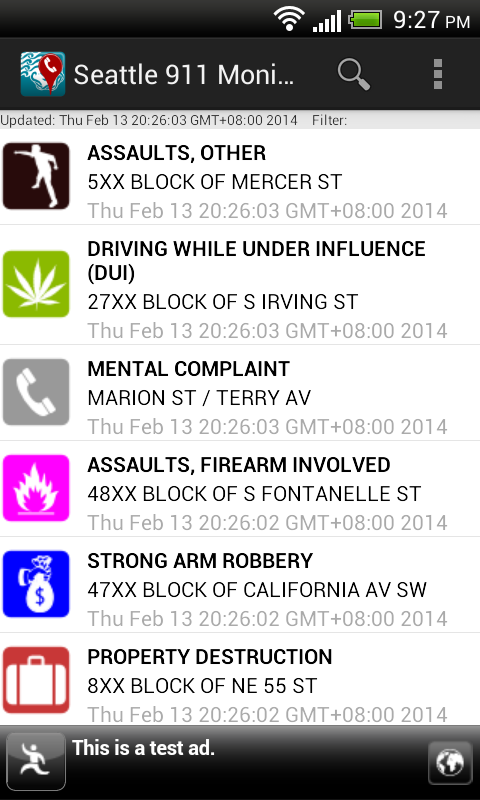
A smart banner ad is displayed at the bottom of the app
The Smart Banner ad unit type in the legacy AdMob SDK (6+) can render screen-wide banner ads on any screen size in any orientation. Using it is easy - simply declare the AdView component as a smart banner type with appropriate attributes in an Android activity layout XML file and it will be ready to serve ads - all without having to write a single line of Java code. The Smart Banner will automatically hide or show itself, depending whether the data connection is disabled or enabled when the app is opened; if there is no data connection, then the ad will be hidden. If the data connection is closed after the app has been opened, keep the ad displayed.


However, the old AdMob 6+ SDK will be replaced with the new ads SDK in the Google Play Services. Java code is required to use the Smart Banner AdView. I wanted  the AdView in the new Google Play Services SDK to behave as in the legacy AdMob SDK i.e. hide itself when there is no data connection, and show itself when there is. The following example code snippets show how to do it.

Declare the Smart Banner AdView in the activity layout XML file


<LinearLayout xmlns:android="http://schemas.android.com/apk/res/android"
xmlns:tools="http://schemas.android.com/tools"
android:id="@+id/LinearLayout1"
android:layout_width="match_parent"
android:layout_height="match_parent"
android:orientation="vertical"
tools:context=".MainActivity" >
 
<!-- 
Add your layout views here. The total layout weight should be 1...
    <FrameLayout 
        android:id="@+id/map_detail_container"
        android:layout_width="match_parent"
        android:weightSum="1"
        android:layout_height="0dip"
        />
-->

<fragment        
android:id="@+id/eventListFragment"
android:name="com.dom925.EventListFragment"
android:layout_width="fill_parent"
android:layout_height="0dp"
android:layout_weight="1.0" />
<com.google.android.gms.ads.AdView
xmlns:ads="http://schemas.android.com/apk/res-auto"
android:id="@+id/mainAdView"
android:layout_gravity="center_horizontal"
android:layout_width="match_parent"
android:layout_height="wrap_content"
ads:adSize="SMART_BANNER"
ads:adUnitId="a152fa33f70c96X"
/>

Code an Ad Listener class to hide and show the AdView
This listener will hide the AdView when it is constructed. When an ad has been loaded, it will display the AdView.

package com.dom925.cadmon.seattle;
 
import android.content.Context;
import android.view.View;
import android.widget.Toast;
 
import com.google.android.gms.ads.AdListener;
import com.google.android.gms.ads.AdRequest;
import com.google.android.gms.ads.AdView;
 
public class GoogleAdListener extends AdListener {
private Context _context;
private AdView _adView;
 
public GoogleAdListener(Context context, AdView adView) {
this._context = context;
_adView = adView; 
//Hide the AdView on creation
_adView.setVisibility(View.GONE);
}

@Override
public void onAdLoaded() {
//Display the AdView if an Ad is loaded
_adView.setVisibility(View.VISIBLE);
}
}

Code the Activity to use the AdView


public class MainActivity extends FragmentActivity
{
//Declare a variable for my AdView
private AdView _adView = null;

@Override
protected void onCreate(Bundle savedInstanceState) {
super.onCreate(savedInstanceState);
setContentView(R.layout.activity_main);
 
//Initialize my AdView and assign the Ad listener to the view
_adView = (AdView)findViewById(R.id.mainAdView);
_adView.setAdListener(new GoogleAdListener(this, _adView));

//Make a request for an ad
requestGoogleAd(_adView);
 
}
 
@Override
protected void onResume() {
super.onResume();
//Show the AdView if the data connection is available
if (checkDataConnection()==true){
_adView.setVisibility(View.VISIBLE);
}        
_adView.resume();
}
@Override
protected void onPause() {
_adView.pause();
super.onPause();
}
@Override
protected void onDestroy() {
_adView.destroy();
super.onDestroy();
}
private void requestGoogleAd(AdView adView){
AdRequest adRequest = new AdRequest.Builder()
.addTestDevice(AdRequest.DEVICE_ID_EMULATOR)
.addTestDevice("541603DA032A1B8626E5C8EA6FA2AADX")
.build();
adView.loadAd(adRequest);                        
}
 
private boolean checkDataConnection(){
boolean status = false;
ConnectivityManager connectivityMgr = (ConnectivityManager)getSystemService(Context.CONNECTIVITY_SERVICE);
if (connectivityMgr.getActiveNetworkInfo()!=null && 
connectivityMgr.getActiveNetworkInfo().isAvailable() &&
connectivityMgr.getActiveNetworkInfo().isConnected()) {
status = true;
} 
return status;
}    
}
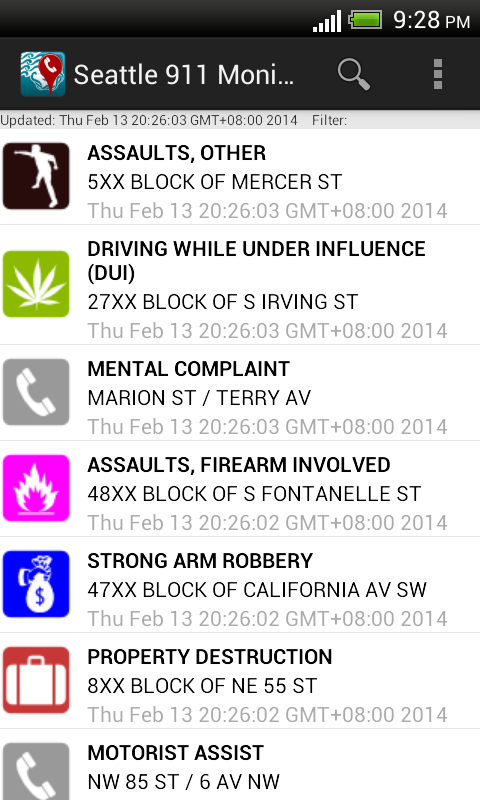


The AdView is not displayed when the app is started without a data connection. 


When the data connection is enabled, the AdView is shown when the app is resumed