Showing posts with label Windows 8. Show all posts

Monday, November 2, 2015

Resolving a Visual Studio uninstallation that takes forever

In some cases, uninstalling Visual Studio may seem to take a long time (as in days) with some cryptic messages about "Applying something" and a looping ball animation as shown in the screenshot below.

If you are in this situation, open up the Windows Task Manager and examine the Disk activity. If the disk activity is minimal, it means the uninstaller is not doing anything and waiting for something.

I found out that the uninstaller will not be able to proceed if the anti-virus software AVG is enabled and running on the system. It seems that AVG will hold onto some files needed by the uninstaller and the installer will wait endlessly for the files to be released. There is no timeout and there is no error messages displayed in the uninstaller.

  1. So to resolve the situation, simply disable AVG temporarily.


  2. Run the Visual Studio uninstaller again.
  3. Optional. Run Task Manager and show the Disk activity.

    The disk activity should be high.

  4. Visual Studio should be successfully removed within a reasonable amount of time now.

Monday, February 23, 2015

Disabling the Windows Phone frame rate numbers display while debugging

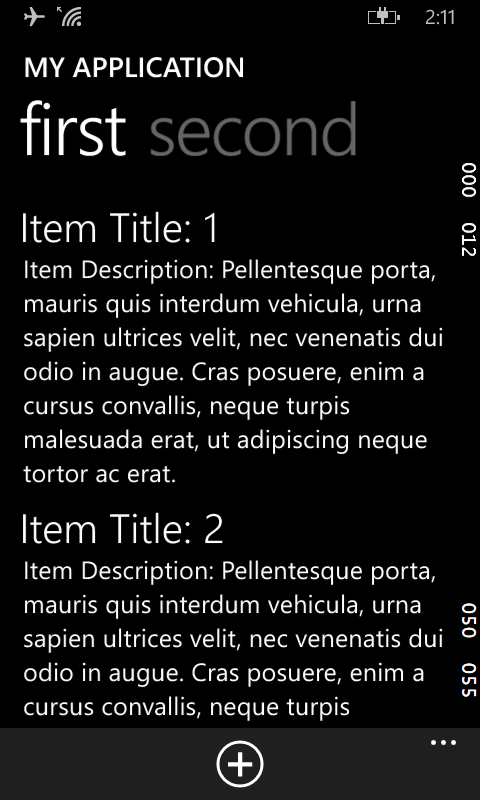
While debugging Windows Phone Apps, there will be some (weird looking) running numbers on the right side of the app's screen, as shown in the screen shot below.

These are actually frame rate counter numbers to aid in debugging. They can be easily switched off if you do not want them on the screen, especially if you want to capture the screen. To turn it off, just do the following:

  1. In Visual Studio, open up the project's App.xaml.cs file in the editor.


  2. Look for the following lines:

    if (System.Diagnostics.Debugger.IsAttached)
    {
    this.DebugSettings.EnableFrameRateCounter = true;
    }

  3. Change them to the following:

    if (System.Diagnostics.Debugger.IsAttached)
    {
    this.DebugSettings.EnableFrameRateCounter = false;
    }

  4. Run and debug the app again.

    The frame rate numbers are no longer displayed.


Monday, March 26, 2012

How to install Windows 8 Consumer Preview in VMWare Player

I downloaded the Windows 8 Consumer Preview 32 bit version iso file from the Microsoft web site http://windows.microsoft.com/en-US/windows-8/iso. It is possible to install the operating system inside the VMware Player 4 virtual machine environment. The player can be downloaded from this web site http://downloads.vmware.com/d/info/desktop_end_user_computing/vmware_player/4_0.

The following screen shots show the steps:

  1. Run the VMware Player.

     
  2. Click Create a New Virtual Machine.

    The New Virtual Machine Wizard dialog box appears.


  3. Toggle on Installer disc image file (iso). Click Browse. Select the iso file downloaded previously e.g. Windows8-ConsumerPreview-32bit-English.iso. Click Next.


  4. Toggle on Microsoft Windows. In the Version combo box, choose Windows 7. Click Next.


  5. In the Virtual machine name field, type in a text string e.g. Windows8.
  6. In the Location field, click Browse and specify the folder to contain the VMware virtual machine files e.g. V:\VM\Win8. Click Next.


  7. Optional. In the Maximum disk size field, type in the desired size to allocate for the VM e.g. 60.
  8. Click Next.


  9. Click Finish.


  10. Select the newly create virtual machine e.g. Windows8. Click Play virtual machine.

    The Windows 8 Setup Wizard appears.


  11. Follow the prompts to complete the installation.


    The Metro tiles appear!