Showing posts with label SVG. Show all posts

Monday, August 26, 2019

Creating faux square Android Navigation Drawer icons

The Navigation drawer widget in Android can display vector SVG icons, but if the vector icons are non-rectangular, Android will distort the dimensions to force them into squares. This can be seen in the screenshot of the Hawaii flag icon below.


It is possible to extend the drawer by code to display non-rectangular icons but I prefer to adjust the SVG icon instead. The way I did it was to change the page size to a square and then placing a transparent square box around the page. The following steps illustrate:

Change the page to a square
  1. Open up the SVG icon in Inkscape.


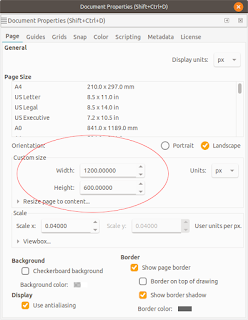
  2. Select File | Document Properties.


    1. Under the Page tab, change the Width and Height to be equal e.g. 1200 x 1200 px. Close the dialog box.

      The page display changes to a square.

  3. Using the Align and Distribute tools, align the graphics to the middle of the page.


Create a transparent square
  1.  Next, click the Create rectangles and squares (F4) icon. Place a stroke only, no-fill rectangle on the page.


  2. Change the width and height of the rectangle to match the page dimensions e.g. 1200 by 1200 px.


  3. Change the origin to the upper left corner of the page, e.g. X=0, Y=0.

  4. Open the Fill and stroke pane. Change the stroke opacity to low or zero opacity, e.g. 0.


  5. Save the file.
Import the SVG vector icon into an Android drawable icon
  1.  In Android Studio, right click on the /path/to/app/res/drawables folder and choose New | Vector Asset.


  2. Toggle on Local File (PNG, SVG). Choose the new SVG icon file from the previous section.
  3. Click Next. Click OK.

    The drawable is created.
Using this new icon, the Navigation drawer can now display the icon seemingly with the correct proportions, as shown below.

Monday, January 25, 2016

WebApp for batch conversion of SVG vector files to raster PNG/JPEG images

This is a simple HTML5 WebApp for converting one or more SVG format files into raster image files in PNG or JPEG formats. At the same time, the user can choose to resultant raster image dimensions, whether it will be scaled at 25%, 50%, 75% or at a custom scale. The HTML5 canvas element is used to perform the conversion locally using the user's Internet browser without having to upload the SVG file to the web server.

  1. To run this WebApp, go to https://dominoc925-pages.appspot.com/webapp/svgimg/


  2. Optional. Click Settings on the right pane and change the Background color, transparency, scale factor, or the image format.


  3. Simply drag and drop the SVG files into the dashed box. Or click the Choose Files button and select one or more SVG files.


    The SVG file(s) are converted to raster image format.
  4. To save the converted image(s) one by one, just right click on the image and choose Save image as. Alternatively, click Main | Generate zip file on the right pane to generate a zip file containing all the converted images.


Monday, November 10, 2014

SVG template for creating Android Material Design product icons

Android Material Design has some guidelines for developers and designers to create product icons that reflect brand identity, as described in detail on this site http://www.google.com/design/spec/style/icons.html#icons-product-icons. As part of these guidelines, product icons can be based on certain keyline shapes in order to "maintain a consistent visual proportion across related product icons."

These keyline shapes include:

  • square
  • circle
  • vertical rectangle
  • horizontal rectangle. 

I did not find any downloadable resources of the keyline shapes to base the creation of new Android icons, so I created my own template in SVG format, at 4 times 48 pixels size, i.e. 192 pixels. The template looks as shown in the screenshot of Inkscape below.


Each keyline shape is placed on a separate layer.

Simply toggle on the desired keyline shape e.g. Horizontal rectangle in order to use it as a guide in creating new icons.


The SVG template can be downloaded from this site https://www.dropbox.com/s/3fhijfrf3zipnjm/mat_dgn_icon_template.svg?dl=0 if you want to use it.